Help Center
Editor Overview

Overview
The Signmitra Editor is a powerful visual design tool for creating slide content.
When you create or edit a slide, the editor opens with:
Left Panel: Element library
• Images – Upload or choose from media library
• Text – Add headlines, body text, captions
• Shapes – Rectangles, circles, lines
• Widgets – Clock, weather, ticker, slideshow, RSS, QR code
• Backgrounds – Solid colors, gradients, images
Center: Canvas area
• Drag and drop elements
• Resize and position with handles
• Snap-to-grid alignment
Right Panel: Properties
• Size, position, rotation
• Font, color, alignment for text
• Opacity and layer order
• Animation settings
Top Toolbar:
• Undo / Redo
• Save
• Preview
• Canvas size settings
• Zoom controls
When you create or edit a slide, the editor opens with:
Left Panel: Element library
• Images – Upload or choose from media library
• Text – Add headlines, body text, captions
• Shapes – Rectangles, circles, lines
• Widgets – Clock, weather, ticker, slideshow, RSS, QR code
• Backgrounds – Solid colors, gradients, images
Center: Canvas area
• Drag and drop elements
• Resize and position with handles
• Snap-to-grid alignment
Right Panel: Properties
• Size, position, rotation
• Font, color, alignment for text
• Opacity and layer order
• Animation settings
Top Toolbar:
• Undo / Redo
• Save
• Preview
• Canvas size settings
• Zoom controls
Step by Step Guide
Step 1: Open the editor
Create or edit a slide to open the visual editor.
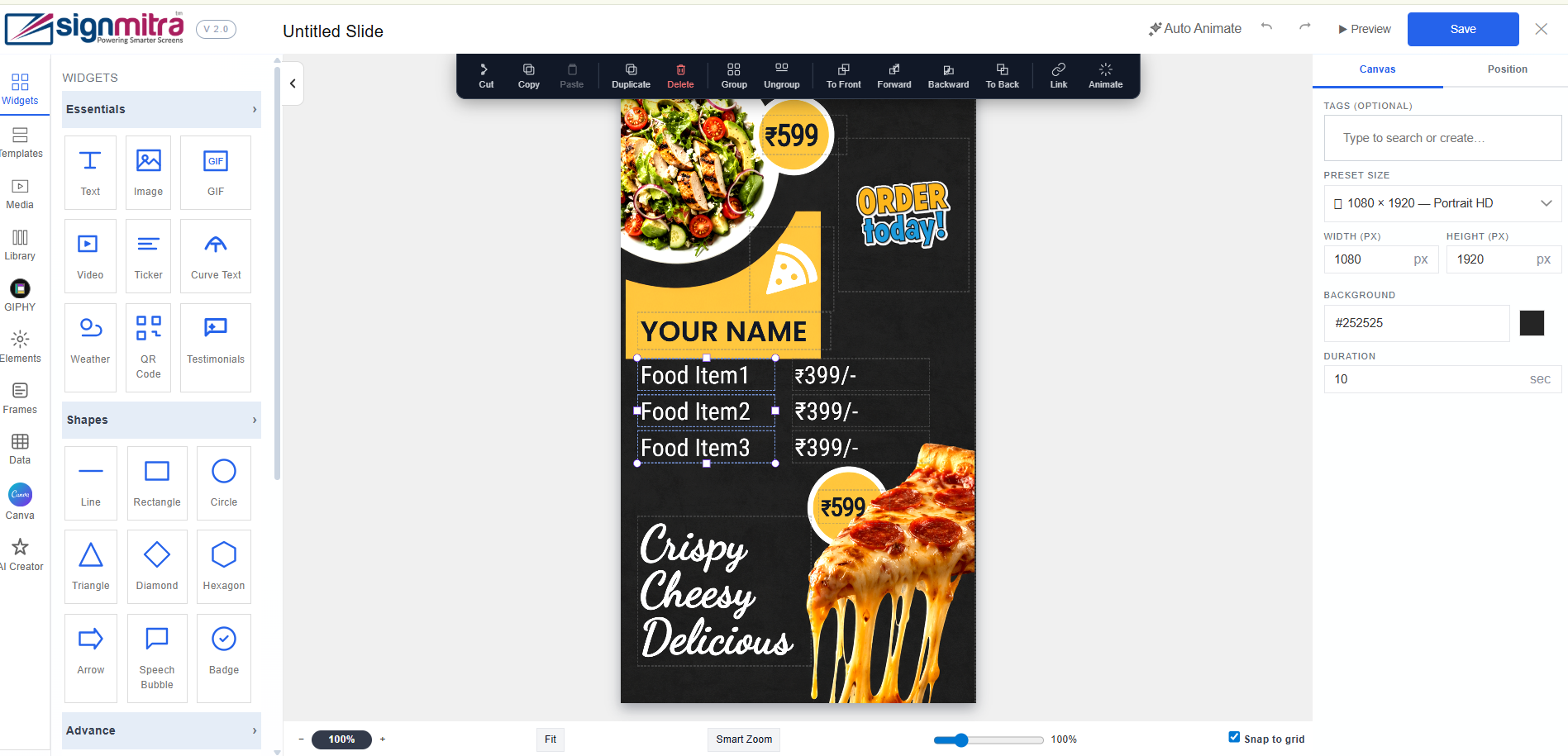
Editor opening with full interface
Step 2: Left panel - elements
Browse the element library: Images, Text, Shapes, Widgets, Backgrounds.
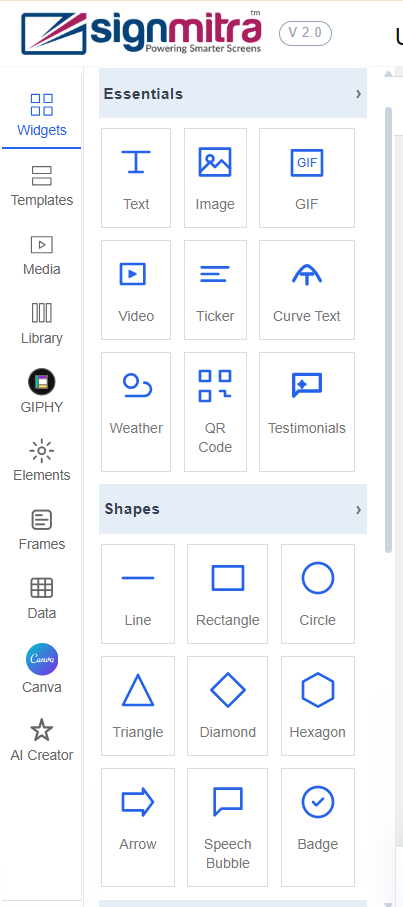
Left panel showing element categories
Step 3: Canvas area
The center area is your design canvas. Drag and drop elements here.
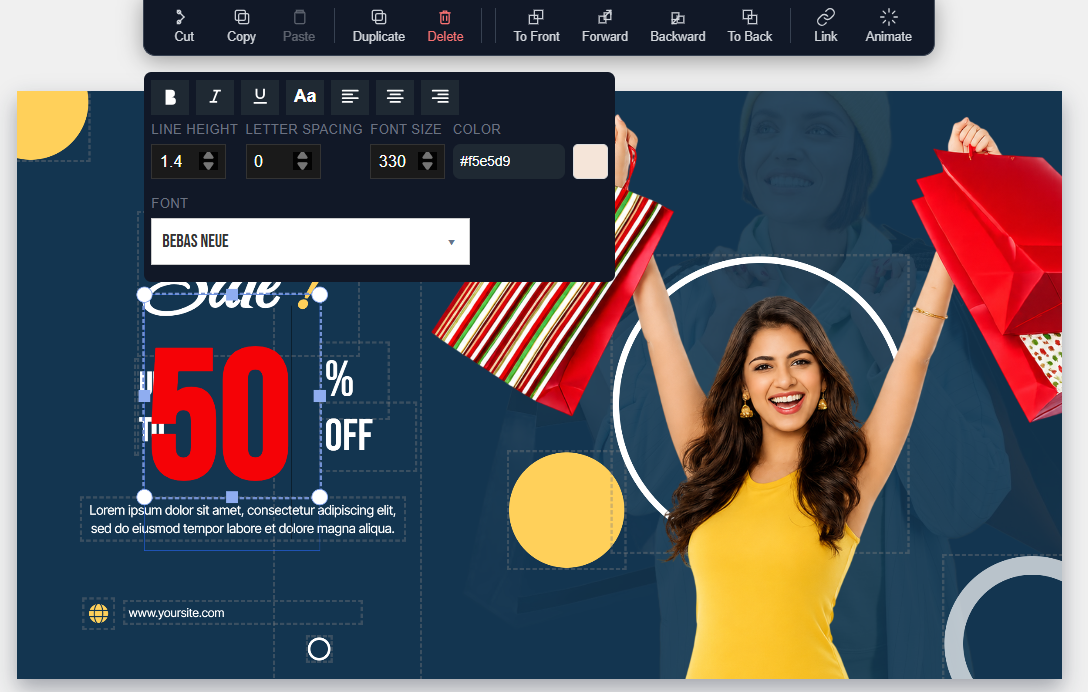
Canvas area with grid and elements
Step 4: Right panel - properties
Select any element to see its properties: size, position, color, font, opacity.
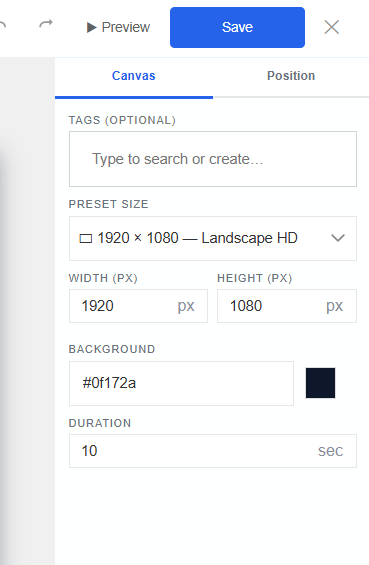
Right panel showing element properties
Step 5: Top toolbar
Use the toolbar for Undo, Redo, Save, Preview, Zoom, and Canvas settings.
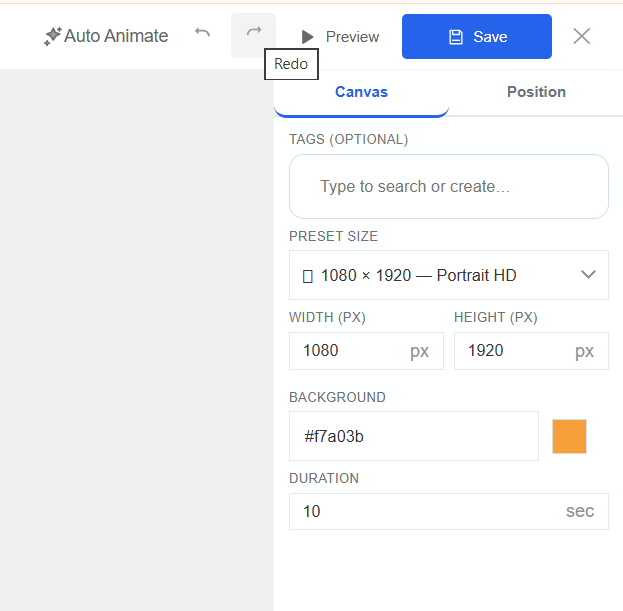
Top toolbar with all action buttons
Frequently Asked Questions
Can I undo changes in the editor?
Yes, use Ctrl+Z (Cmd+Z on Mac) or click the Undo button in the toolbar.
Does the editor support custom fonts?
Yes, the editor includes a library of fonts. Custom font uploads depend on your plan.
Was this article helpful?
Related Articles
Search Other Topics
Still need help?
Our team can help you with setup, device pairing, scheduling, and billing.