Help Center
Schedule Content by Date and Time

Scheduling
Schedule Content by Date and Time
Run specific playlists on specific days, dates, or hours.
Overview
Scheduling allows a screen to automatically switch content based on dates and times.
Steps:
1. Go to the Schedule Manager
2. Select the screen or playlist
3. Click "Add Schedule"
4. Set the start date and end date
5. Set the start time and end time
6. Select days of week (Mon-Sun) if recurring
7. Choose the playlist to play during this window
8. Save the schedule
Example: Play "Lunch Menu" from 11:00 AM to 2:00 PM on weekdays.
Outside the scheduled window, the default playlist resumes automatically.
Steps:
1. Go to the Schedule Manager
2. Select the screen or playlist
3. Click "Add Schedule"
4. Set the start date and end date
5. Set the start time and end time
6. Select days of week (Mon-Sun) if recurring
7. Choose the playlist to play during this window
8. Save the schedule
Example: Play "Lunch Menu" from 11:00 AM to 2:00 PM on weekdays.
Outside the scheduled window, the default playlist resumes automatically.
Step by Step Guide
Step 1: Open Schedule Manager
Navigate to the scheduling section from the screen settings or main navigation.
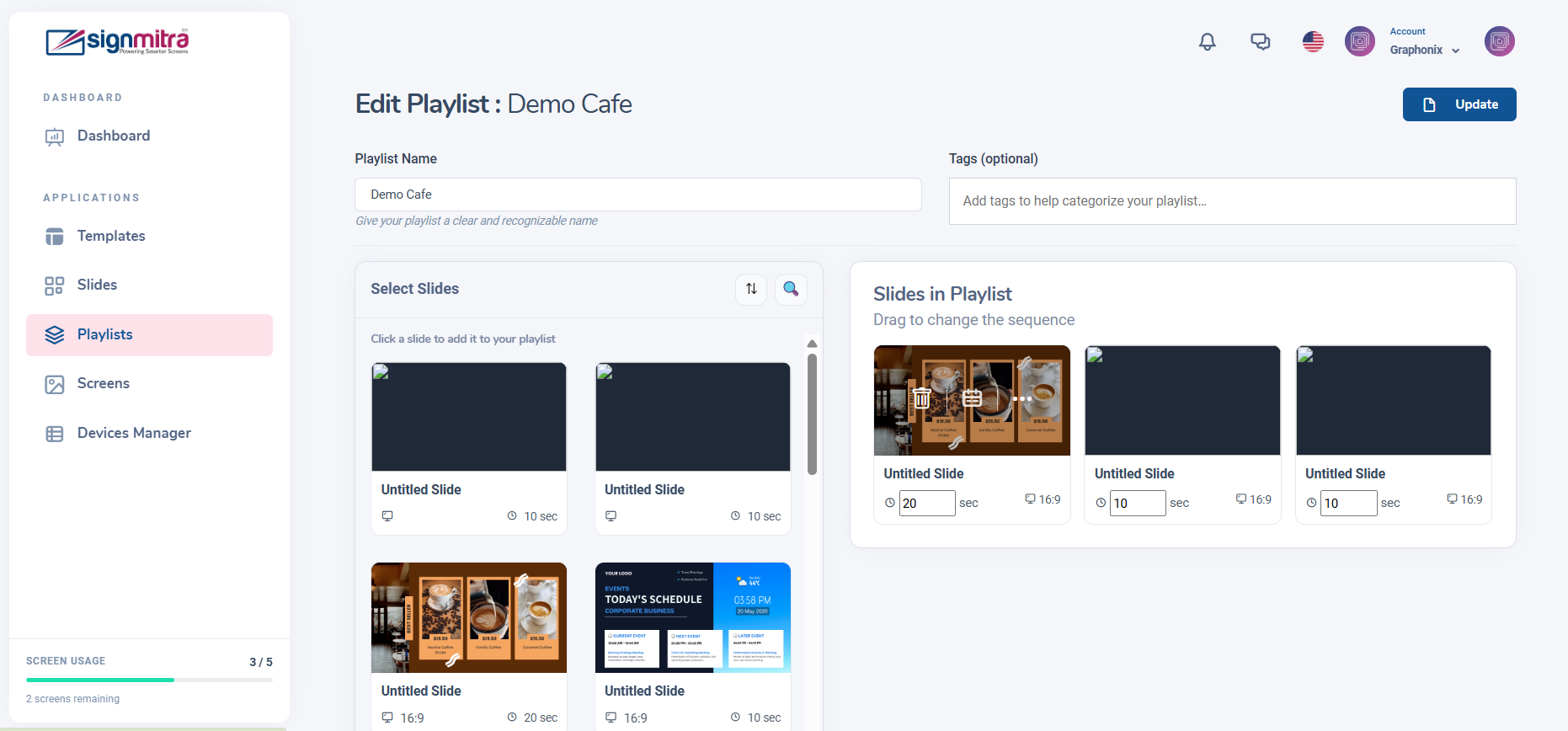
Schedule Manager page
Step 2: Select screen or playlist
Choose which screen and playlist this schedule applies to.
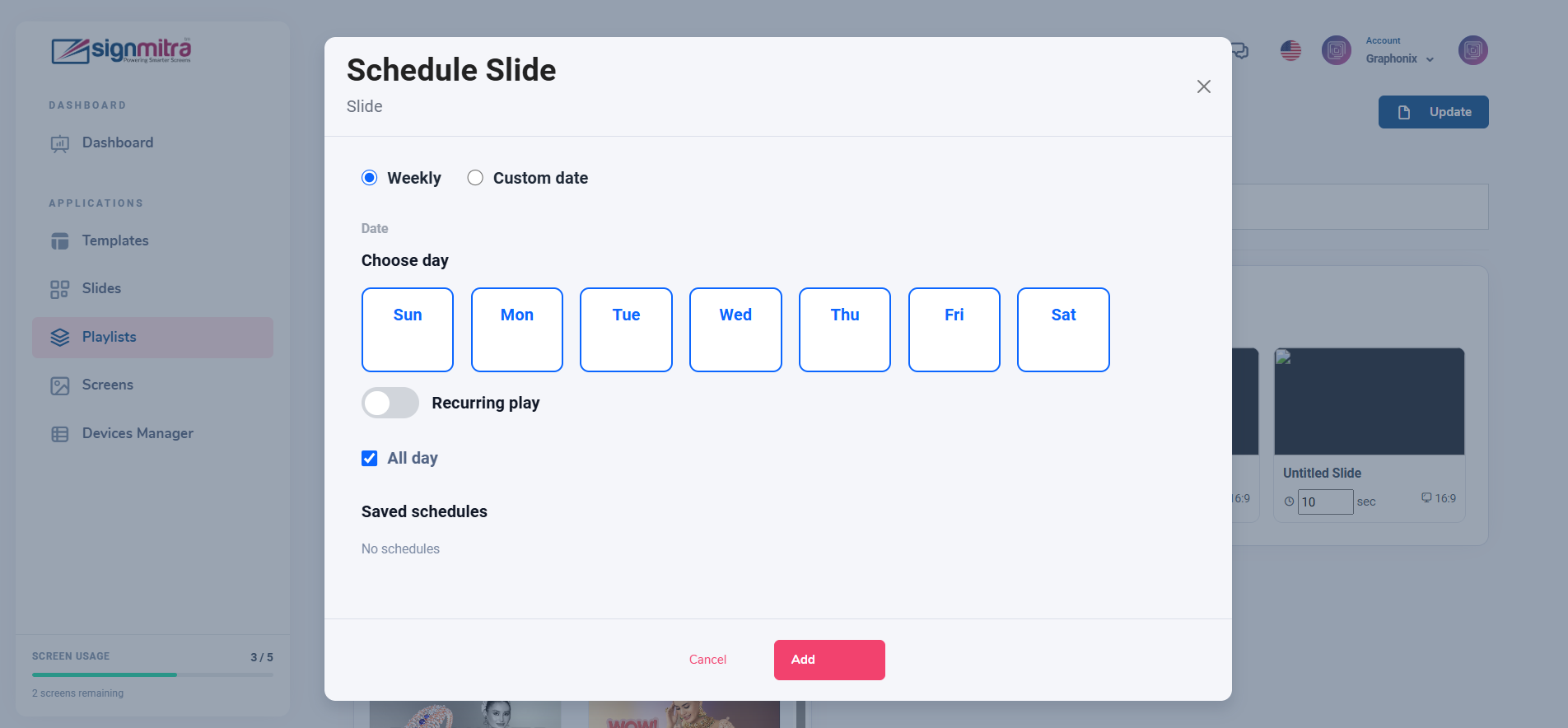
Screen and playlist selection
Step 3: Set date and time
Configure start date, end date, start time, end time, and days of week.
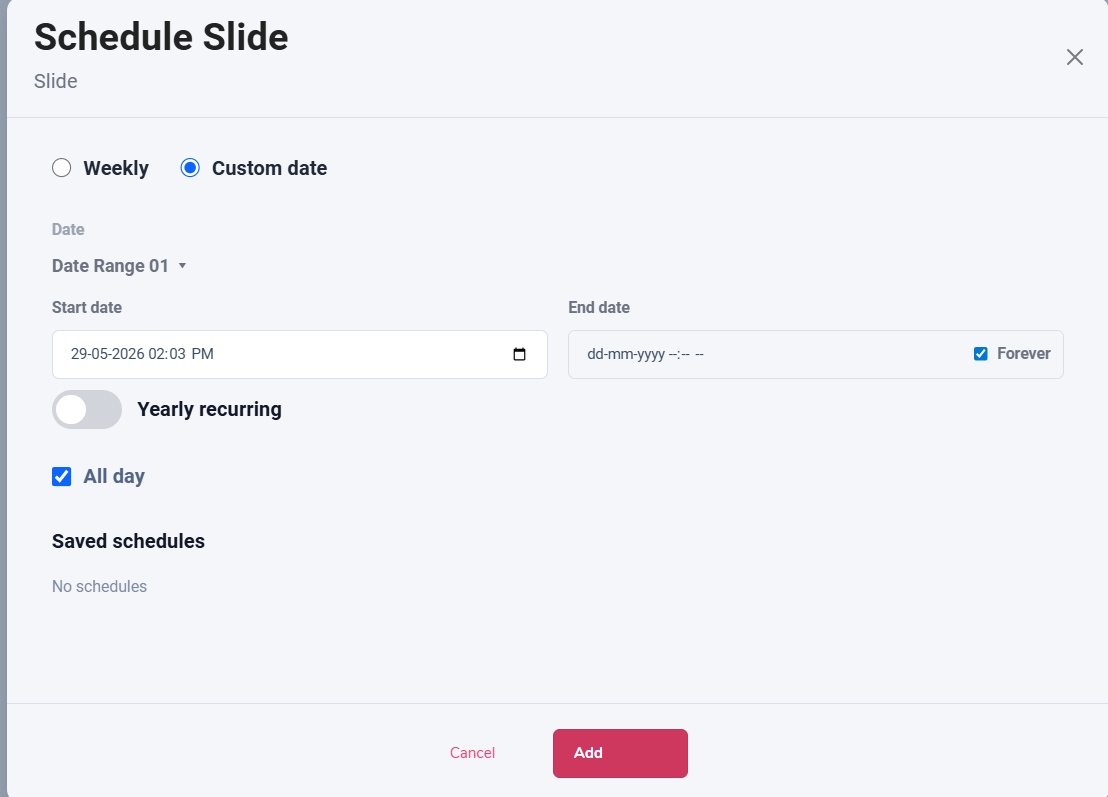
Date and time configuration form
Step 4: Save the schedule
Click Save. The schedule appears in the schedule list and activates automatically.
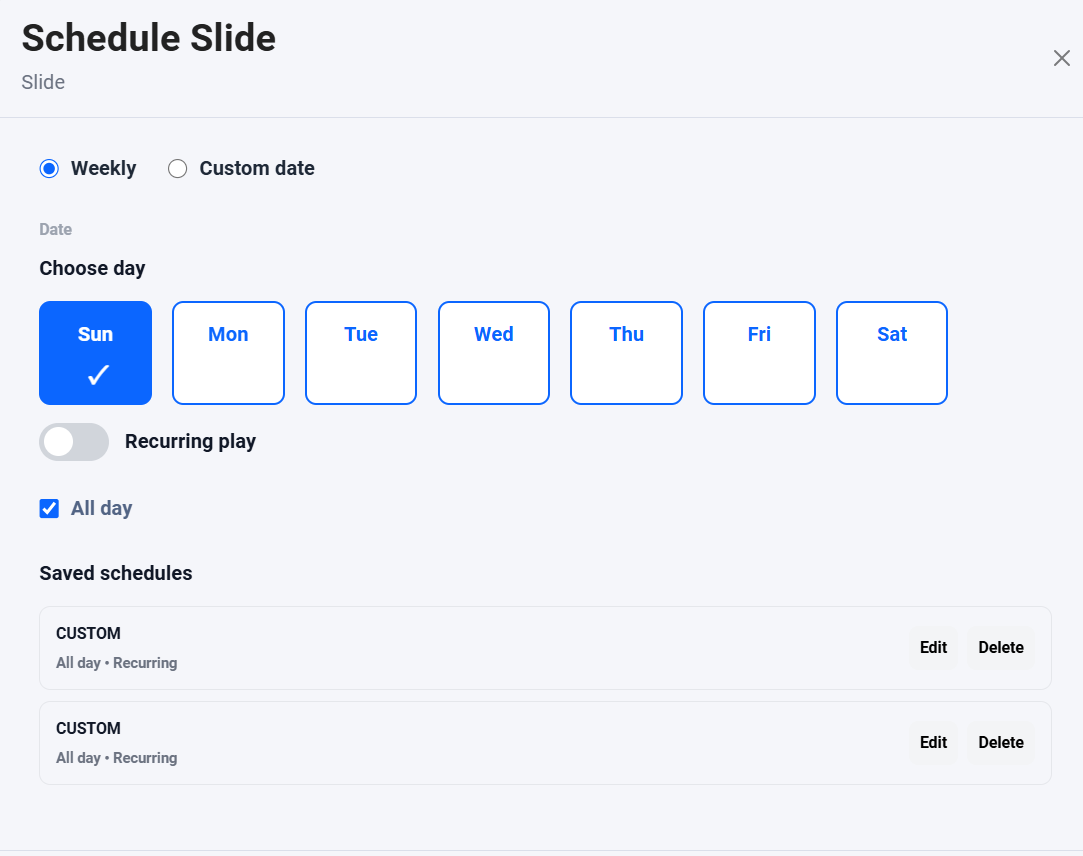
Schedule list showing the new schedule
Frequently Asked Questions
Can I schedule the same playlist to multiple screens?
Yes, create a schedule for each screen with the same playlist.
Was this article helpful?
Related Articles
Search Other Topics
Still need help?
Our team can help you with setup, device pairing, scheduling, and billing.