Help Center
Add Your First Screen

Overview
Before pairing a TV, create a screen entry in Signmitra.
Steps:
1. Go to Screens from the sidebar
2. Click "Add Screen"
3. Enter a screen name (e.g., "Lobby TV", "Shop Window")
4. Enter the location or description
5. Click "Save"
The screen appears in your list with "Offline" status. Next, pair a player device to bring it online.
Steps:
1. Go to Screens from the sidebar
2. Click "Add Screen"
3. Enter a screen name (e.g., "Lobby TV", "Shop Window")
4. Enter the location or description
5. Click "Save"
The screen appears in your list with "Offline" status. Next, pair a player device to bring it online.
Step by Step Guide
Step 1: Open Screens section
Click "Screens" in the sidebar navigation.
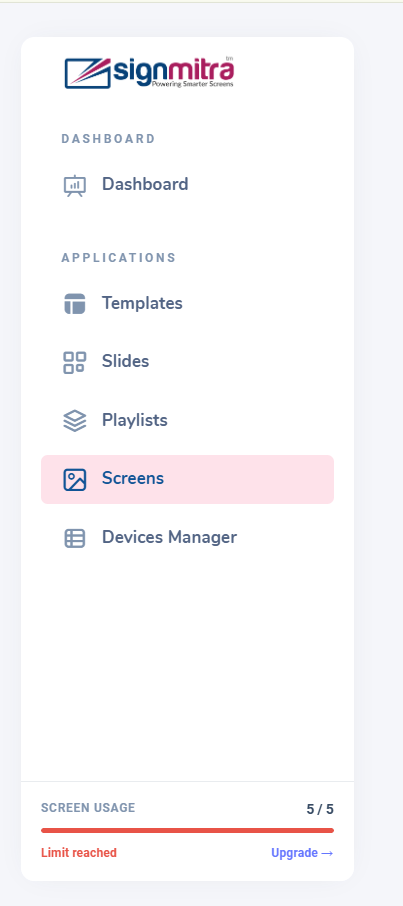
Screens section in sidebar
Step 2: Click Create Screen
Click the “Create Screen" button at the top right.
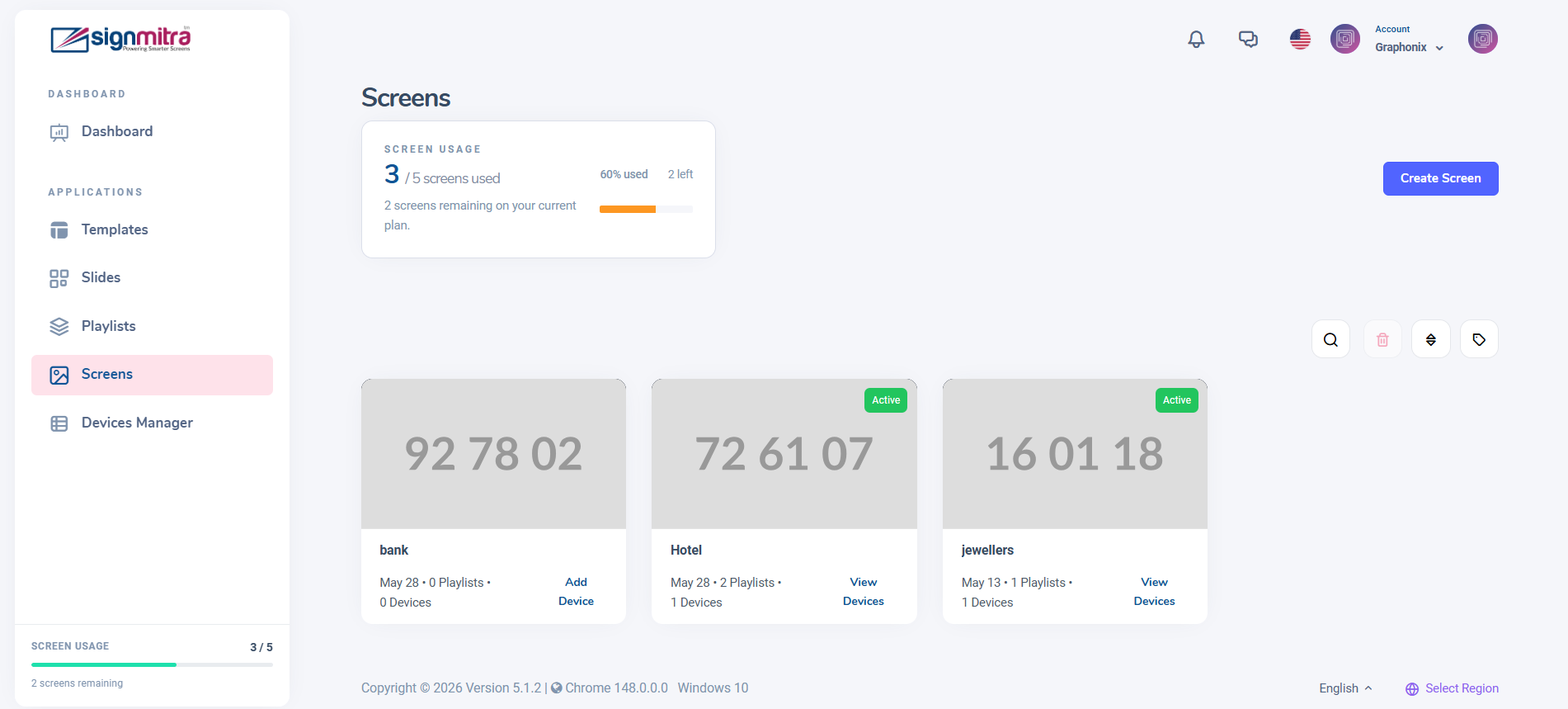
Create Screen button highlighted
Step 3: Enter screen details
Fill in the screen name and location. Click Save.
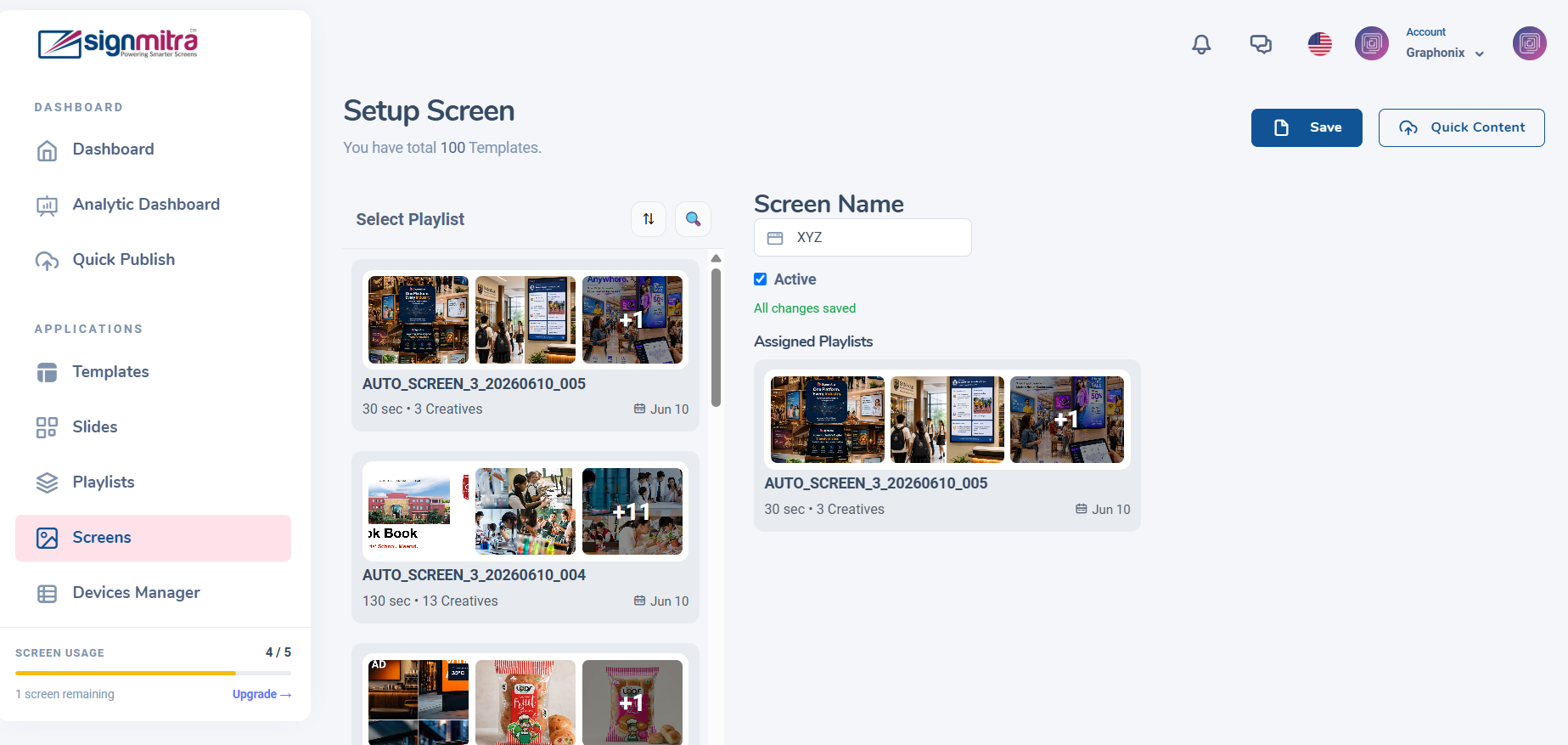
Screen creation form with name and location
Step 4: Screen appears in list
The new screen shows in your list with "Offline" status, ready for device pairing.
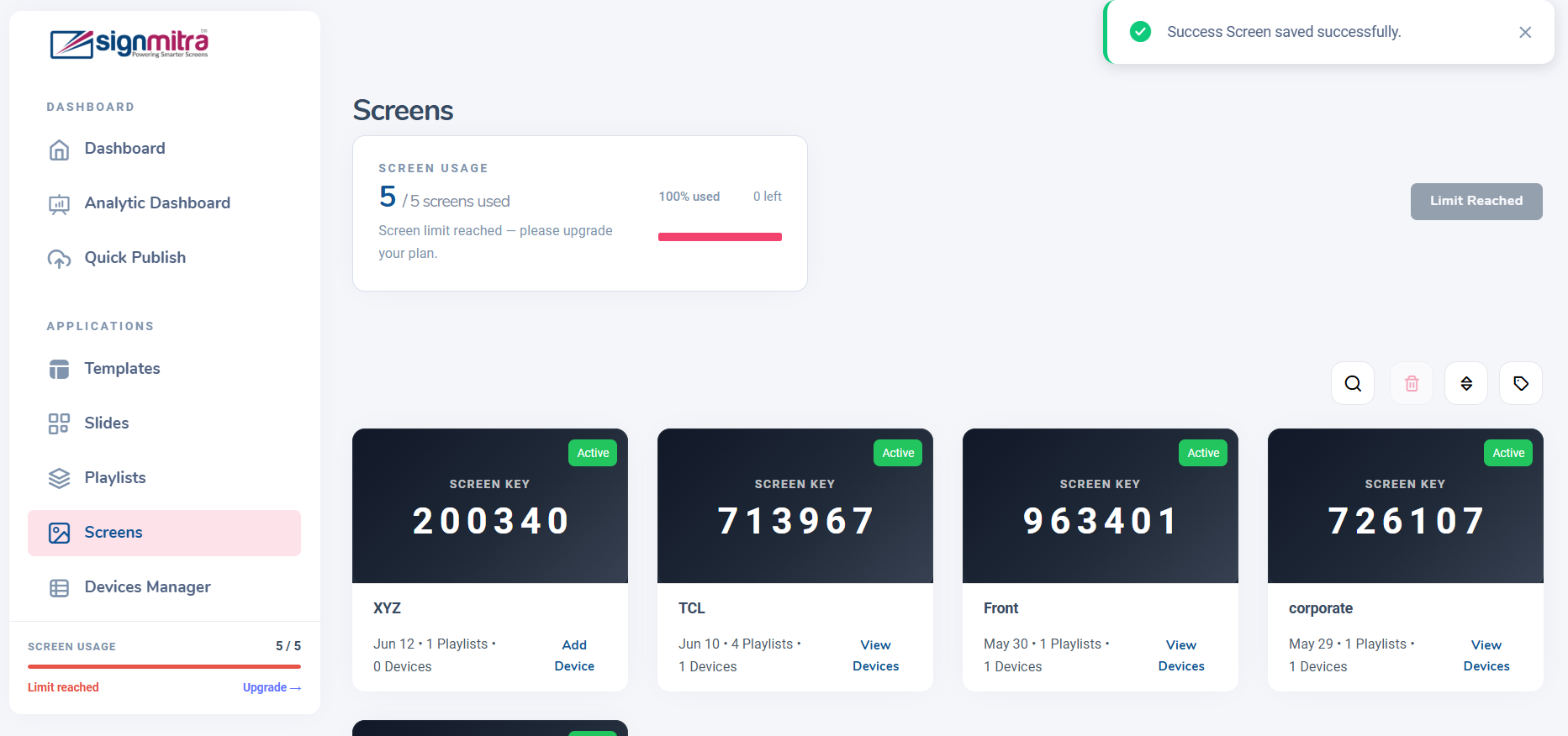
Screen list showing the newly created screen
Was this article helpful?
Related Articles
Search Other Topics
Still need help?
Our team can help you with setup, device pairing, scheduling, and billing.