Help Center
Pair Device Using QR Code
Overview
QR pairing is the fastest method to connect a player device.
Steps:
1. Install Signmitra Player from Google Play Store on your Android TV
2. Open the Signmitra Player app
3. The app shows a QR code on the TV screen
4. In your Signmitra dashboard, go to the Screen you want to pair
5. Click "Pair Device"
6. Select "QR Code" method
7. Scan the QR code from your TV using the dashboard
8. Wait a few seconds — the screen status changes to "Online"
The device is now paired and will start playing the assigned playlist.
Steps:
1. Install Signmitra Player from Google Play Store on your Android TV
2. Open the Signmitra Player app
3. The app shows a QR code on the TV screen
4. In your Signmitra dashboard, go to the Screen you want to pair
5. Click "Pair Device"
6. Select "QR Code" method
7. Scan the QR code from your TV using the dashboard
8. Wait a few seconds — the screen status changes to "Online"
The device is now paired and will start playing the assigned playlist.
Step by Step Guide
Step 1: Install Signmitra Player
Download and install Signmitra Player from Google Play Store on your Android TV.
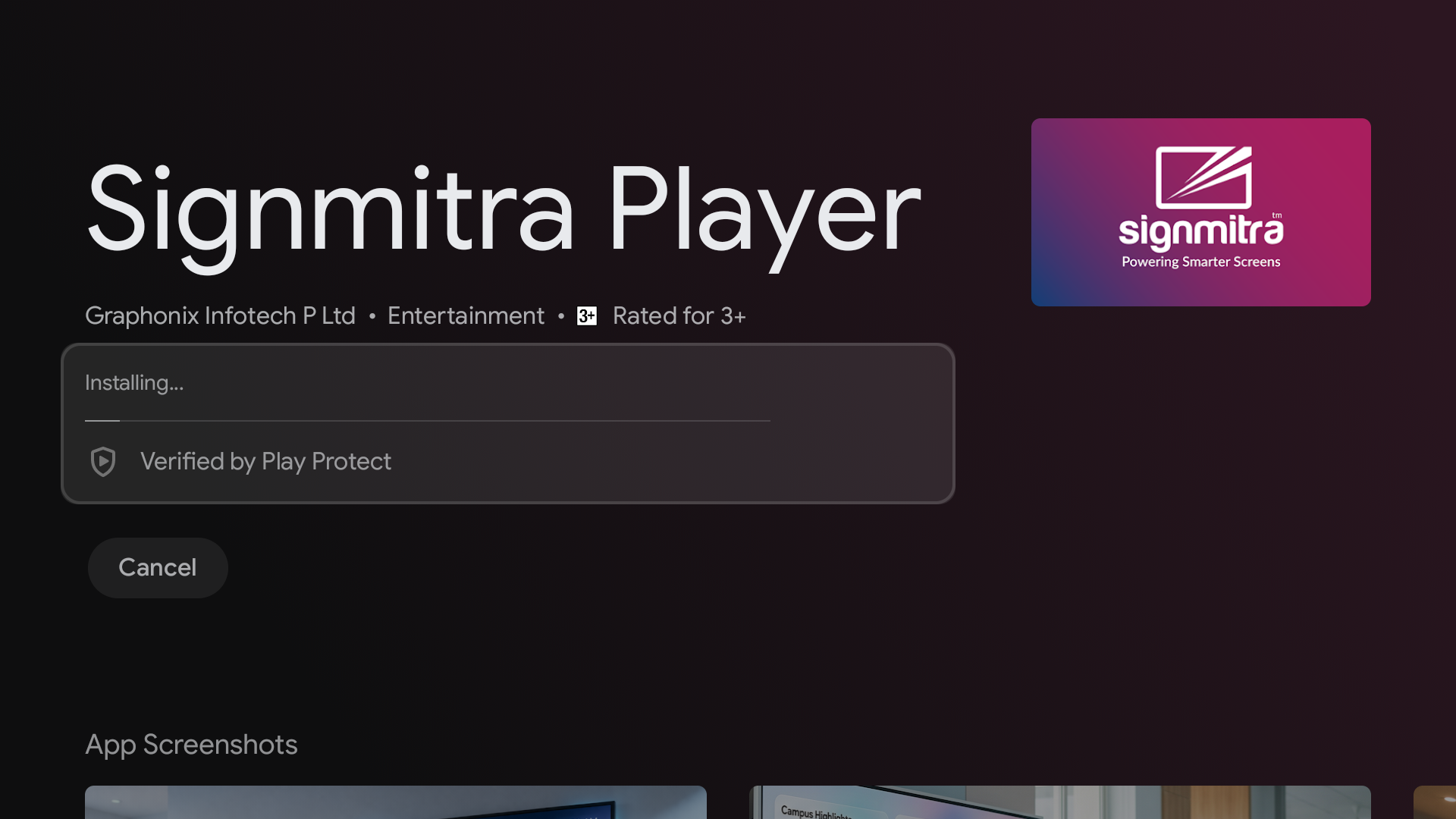
Google Play Store showing Signmitra Player
Step 2: Open the Player app
Launch the app. It displays a QR code on the TV screen.
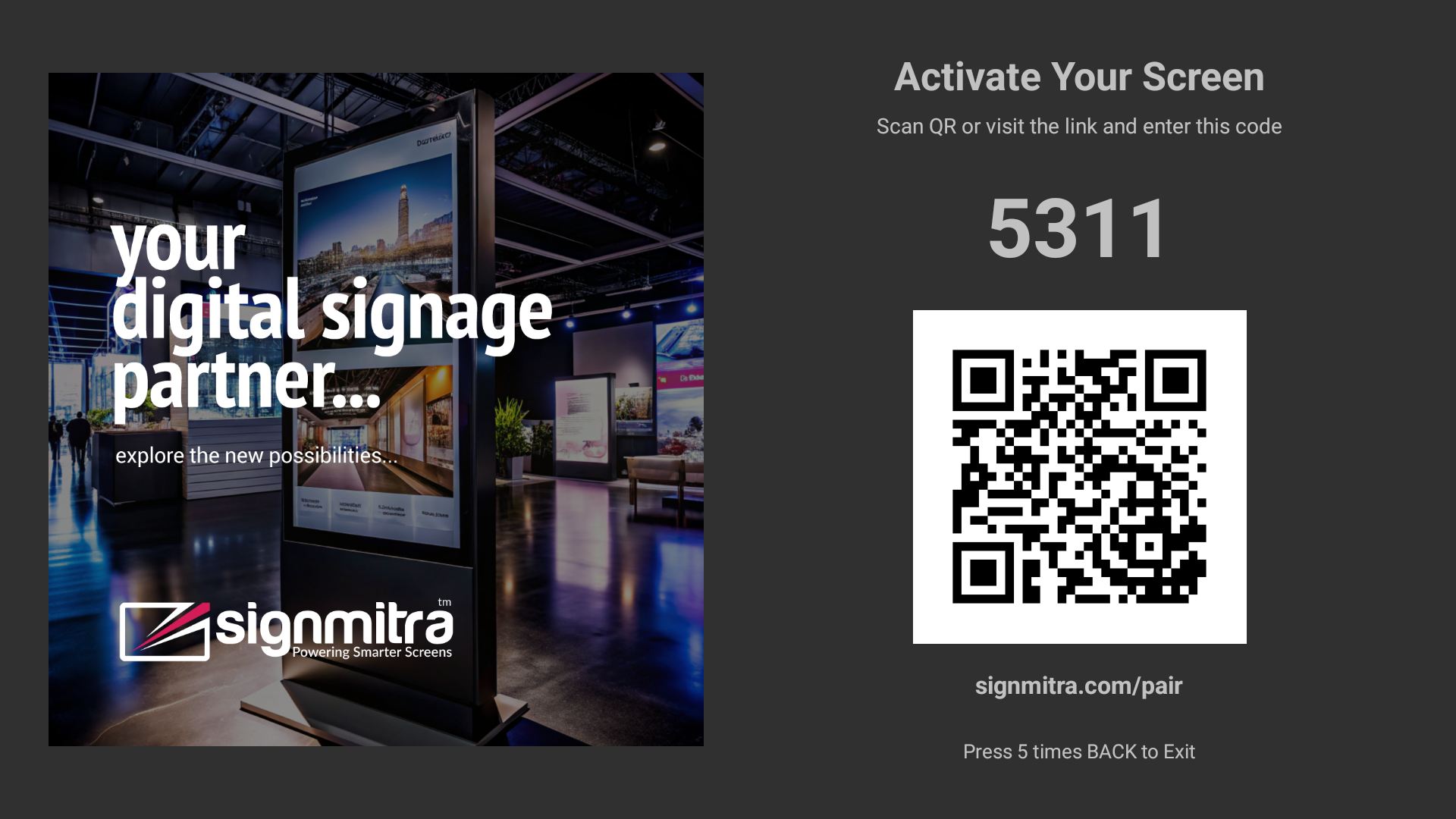
Signmitra Player showing QR code on TV
Step 3: Scan QR from dashboard
In your Signmitra dashboard, go to the screen and click "Pair Device" → "QR Code". Scan the QR.
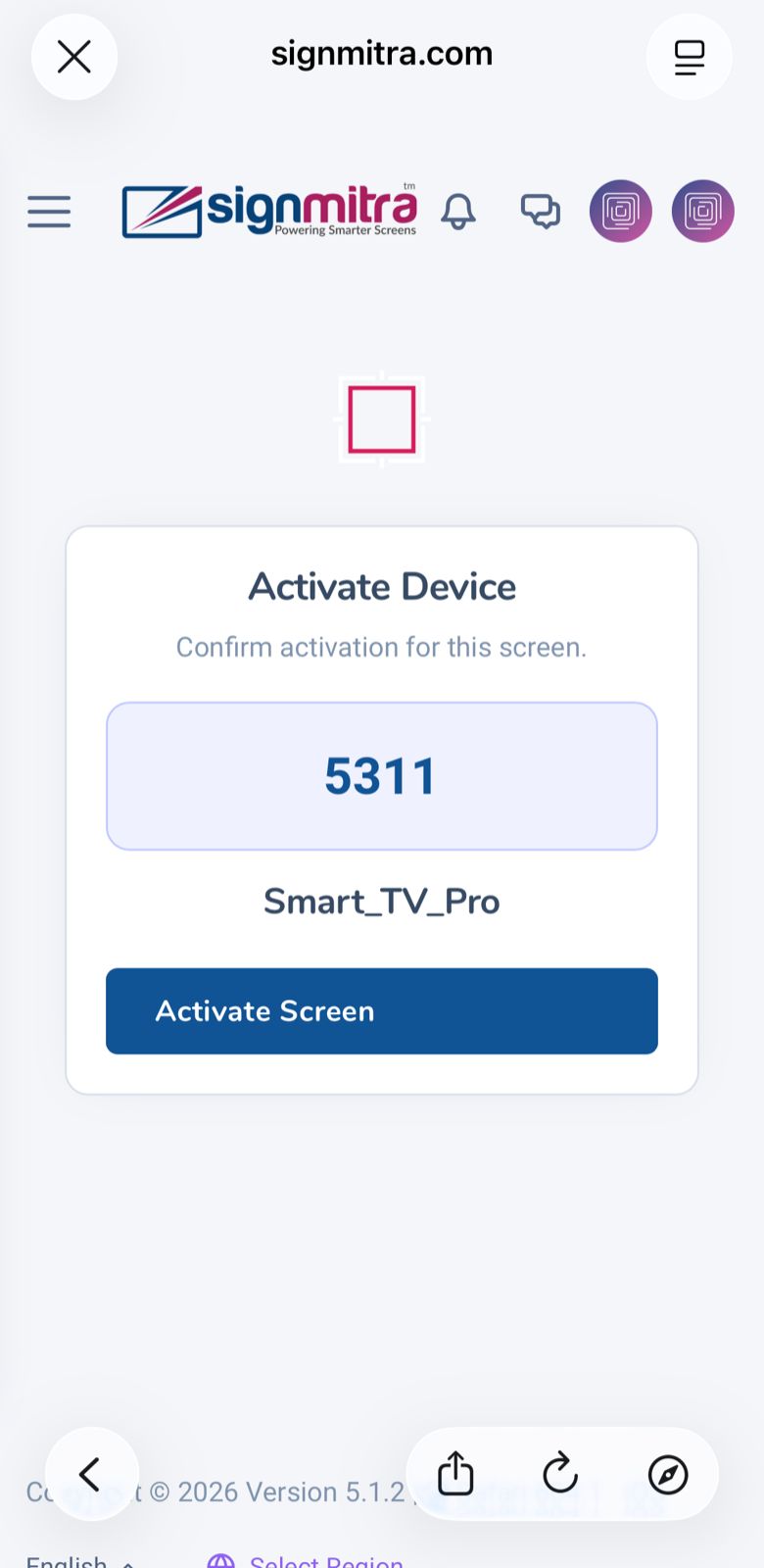
Dashboard QR scanning interface
Step 4: Device goes Online
Within seconds the screen status changes to "Online" and content begins playing.
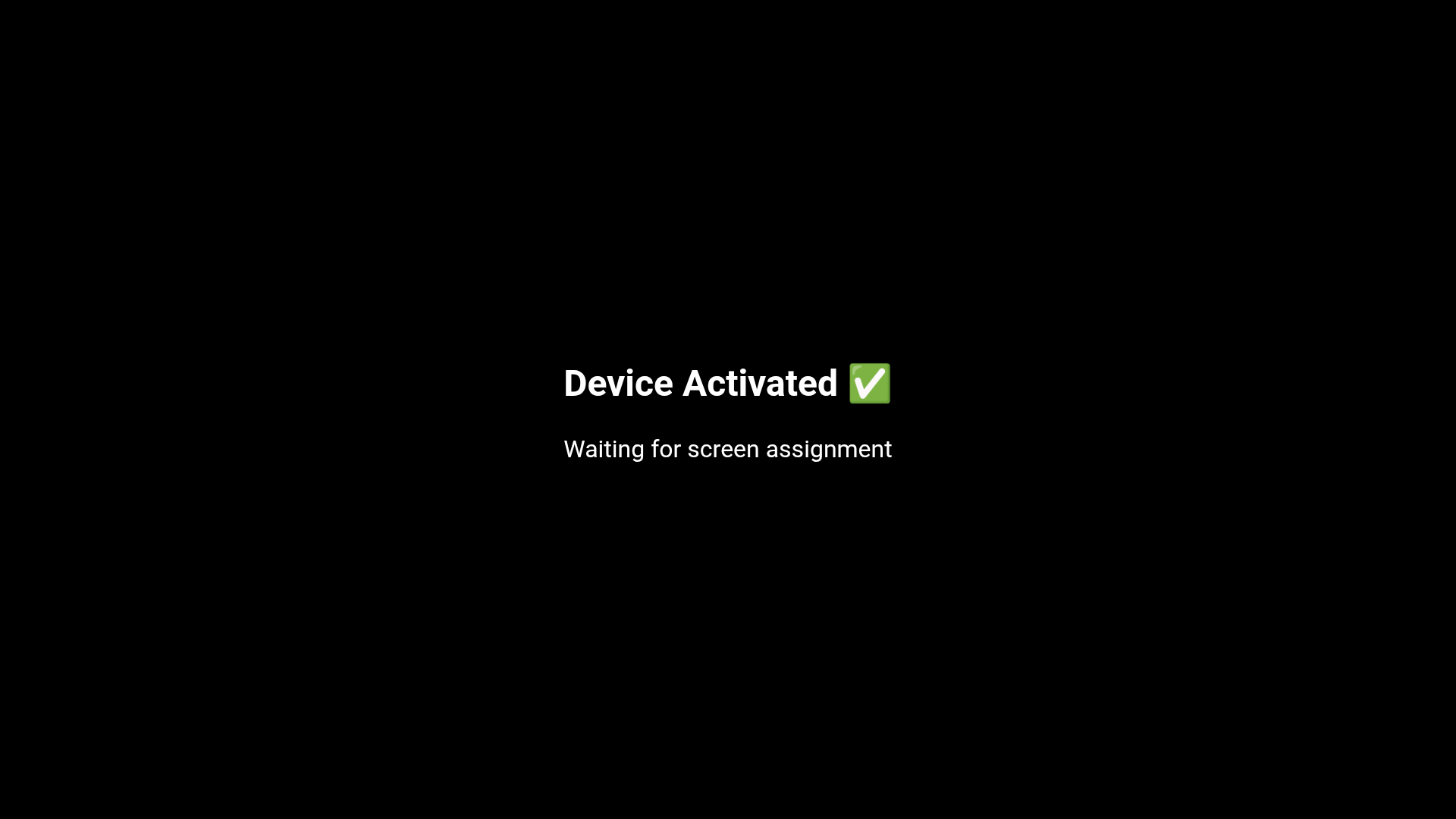
Screen showing Online status after pairing
Frequently Asked Questions
The QR code is not scanning. What should I do?
Ensure the TV screen is bright and clean. Hold the device steady. Try Screen Key pairing as an alternative.
The device paired but shows Offline.
Wait 2-3 minutes for the first heartbeat. Check internet connection. Ensure the player app is running.
Was this article helpful?
Related Articles
Search Other Topics
Still need help?
Our team can help you with setup, device pairing, scheduling, and billing.