Help Center
Devices Manager Overview

Overview
The Devices Manager (Sidebar → Devices Manager) shows all paired player devices.
For each device you can see:
• Device name and type
• Connected screen
• Online/Offline status
• Last heartbeat time
• App version
Actions available:
• Pair a new device
• Unpair a device
• Force sync content
• Restart player remotely
Devices are Android TV boxes, Fire TV sticks, or any device running the Signmitra Player app.
For each device you can see:
• Device name and type
• Connected screen
• Online/Offline status
• Last heartbeat time
• App version
Actions available:
• Pair a new device
• Unpair a device
• Force sync content
• Restart player remotely
Devices are Android TV boxes, Fire TV sticks, or any device running the Signmitra Player app.
Step by Step Guide
Step 1: Open Devices Manager
Click "Devices Manager" in the sidebar.
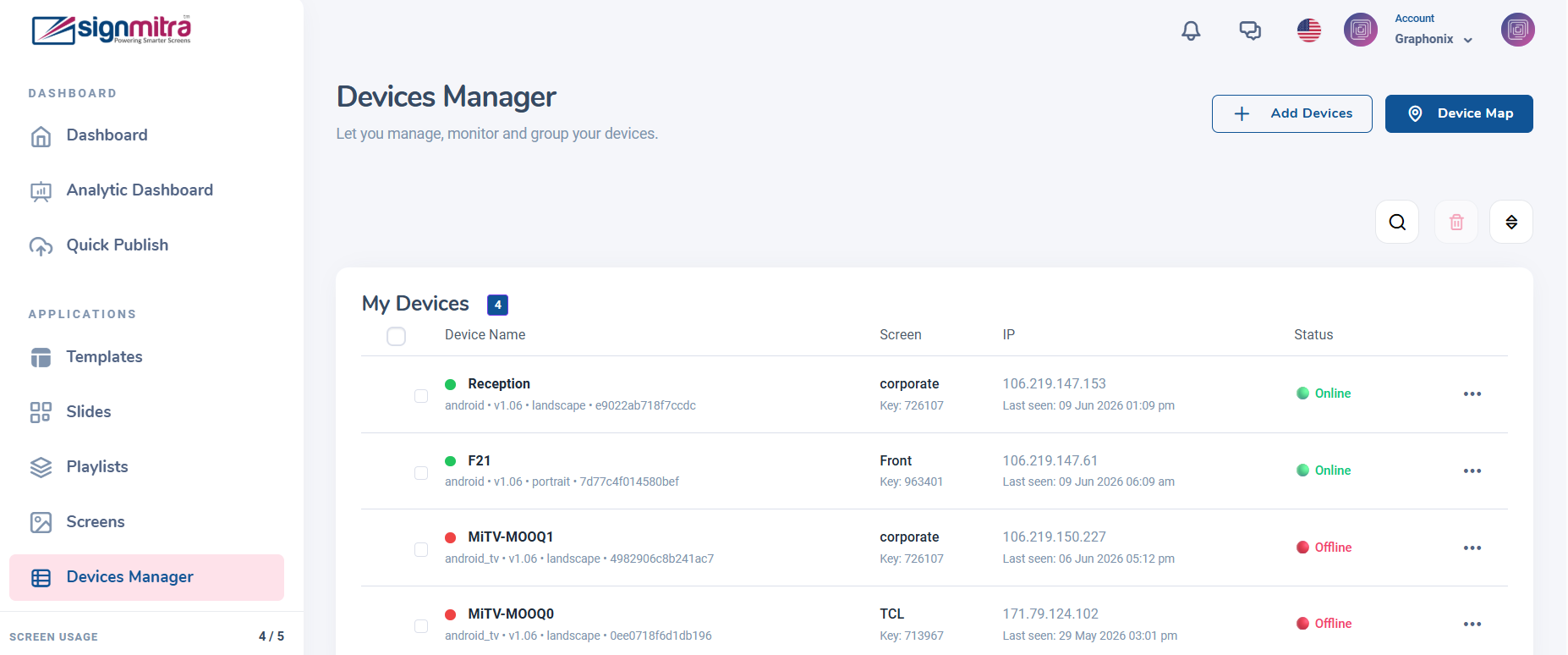
Devices Manager page with list of paired devices
Step 2: View device details
Each device card shows name, connected screen, status, last heartbeat, and app version.
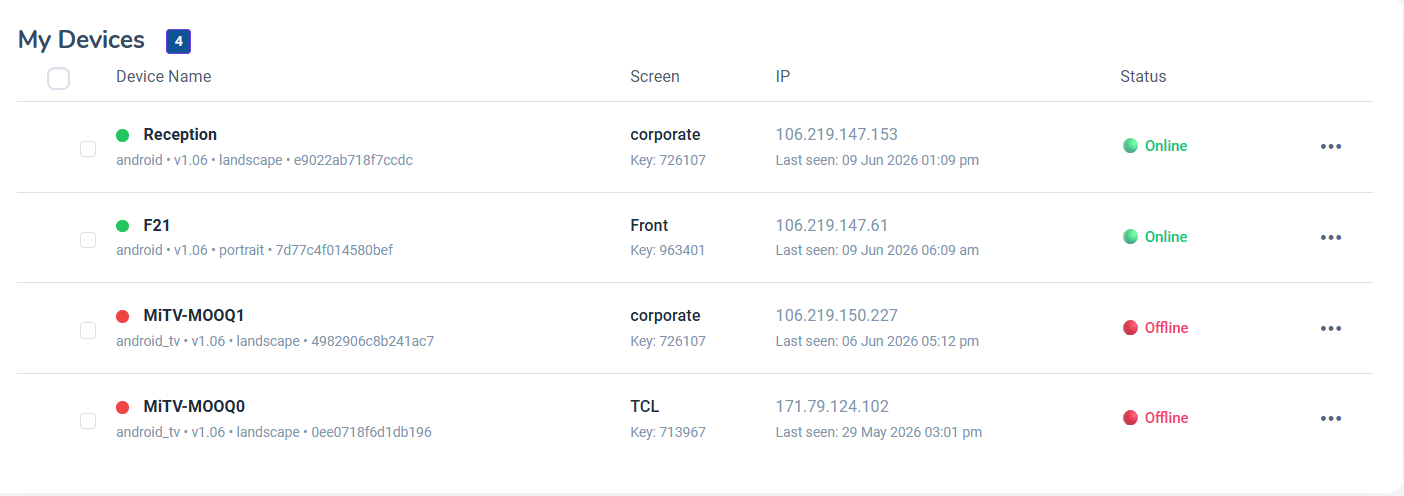
Device card with status details
Step 3: Device actions
Click a device to access actions: Force Sync, Restart, Unpair.
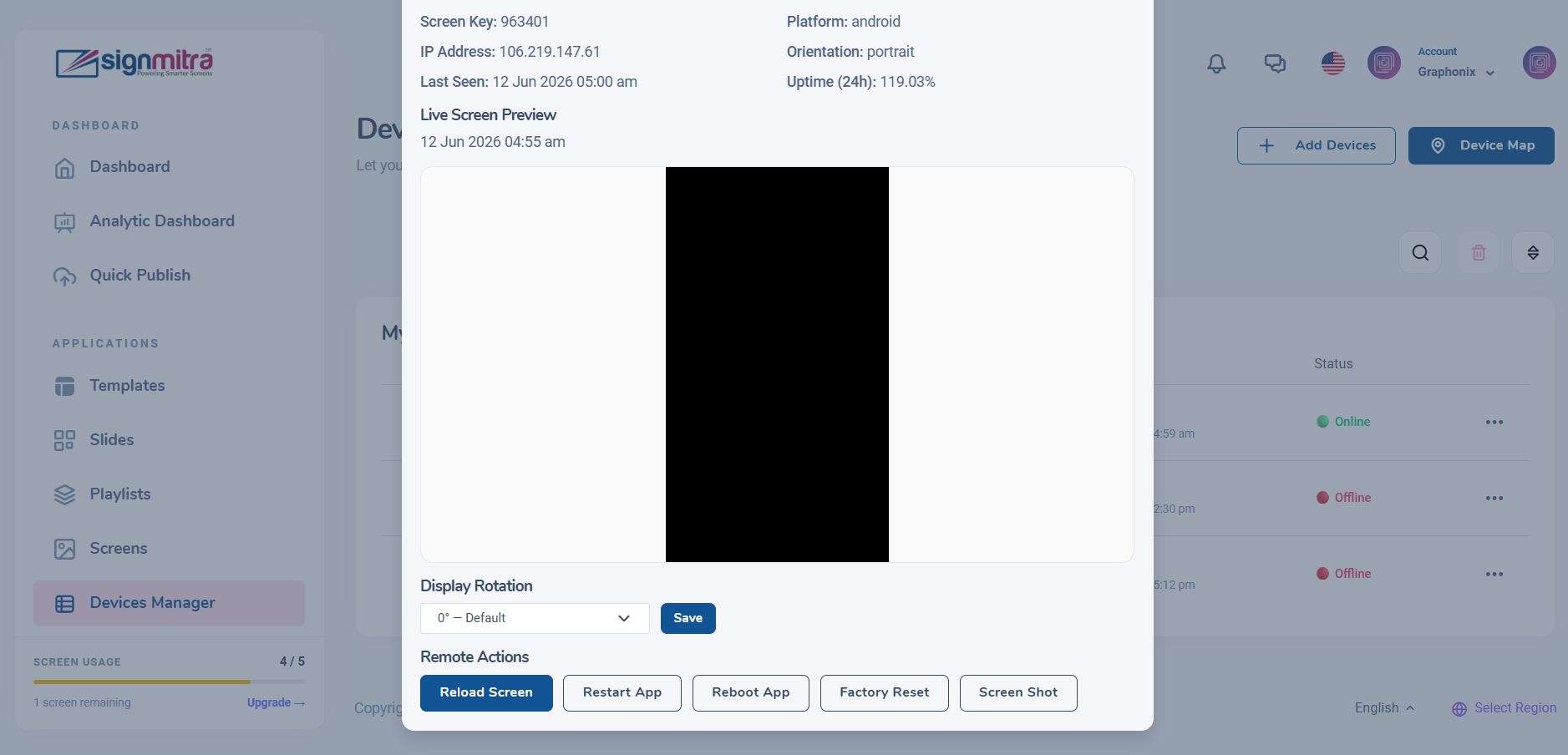
Device action buttons
Step 4: Pair new device
Click "Pair Device" to connect a new Android TV or Fire TV player.
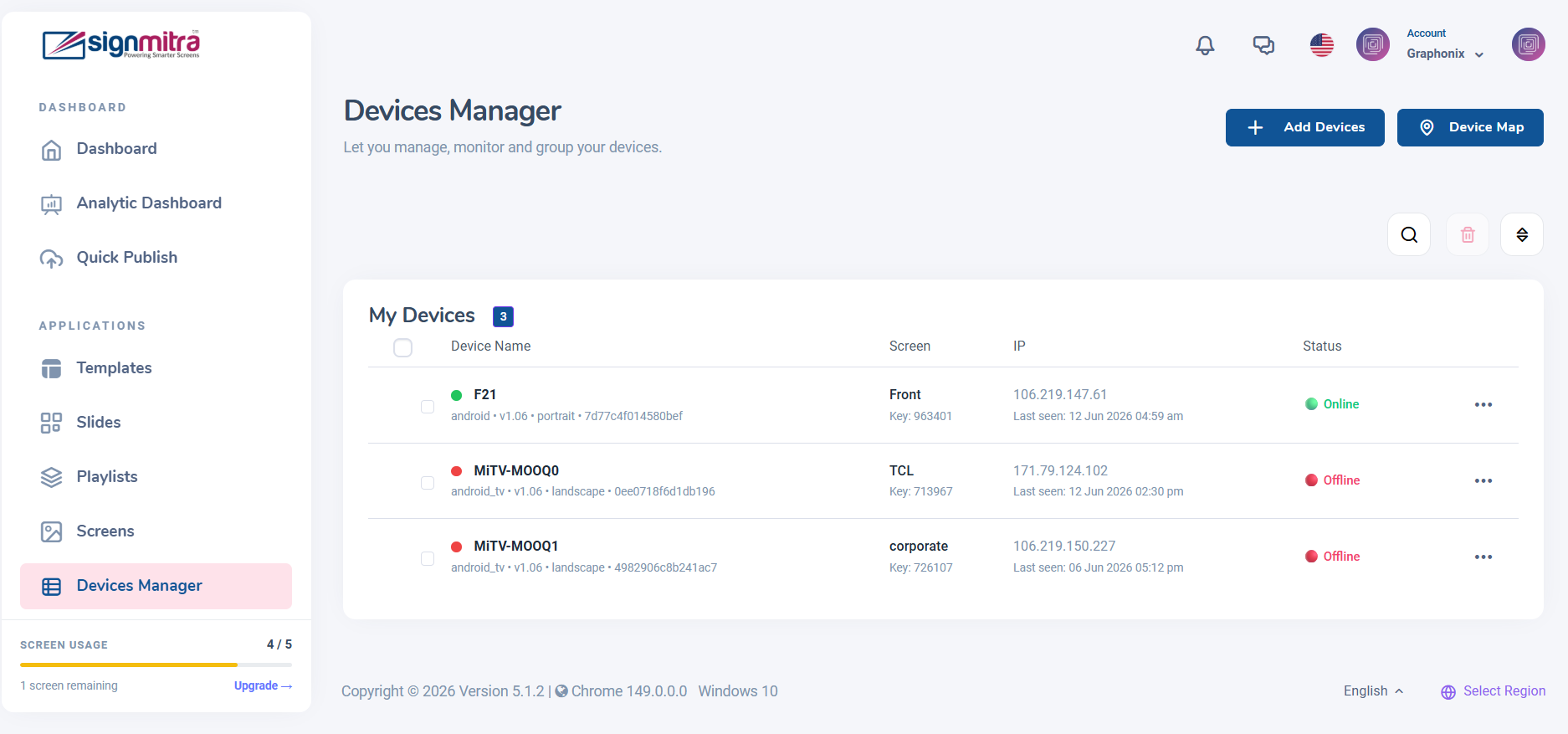
Pair device dialog
Was this article helpful?
Related Articles
Search Other Topics
Still need help?
Our team can help you with setup, device pairing, scheduling, and billing.