Help Center
Pair Device Using Screen Key

Overview
Screen Key pairing is useful when the TV is far from your computer.
Steps:
1. Install and open Signmitra Player on your Android TV
2. In the Player app, select "Enter Screen Key" mode
3. Note the 4-digit or alphanumeric key shown on the TV
4. In your Signmitra dashboard, go to the Screen
5. Click "Pair Device"
6. Select "Screen Key" method
7. Enter the key and click "Pair"
8. The screen status changes to "Online"
Use this method when:
• The TV is in another room
• Camera-based QR scanning is not available
• You are setting up remotely
Steps:
1. Install and open Signmitra Player on your Android TV
2. In the Player app, select "Enter Screen Key" mode
3. Note the 4-digit or alphanumeric key shown on the TV
4. In your Signmitra dashboard, go to the Screen
5. Click "Pair Device"
6. Select "Screen Key" method
7. Enter the key and click "Pair"
8. The screen status changes to "Online"
Use this method when:
• The TV is in another room
• Camera-based QR scanning is not available
• You are setting up remotely
Step by Step Guide
Step 1: Open manual pairing mode
On the Signmitra Player app, select "Enter Screen Key" mode.
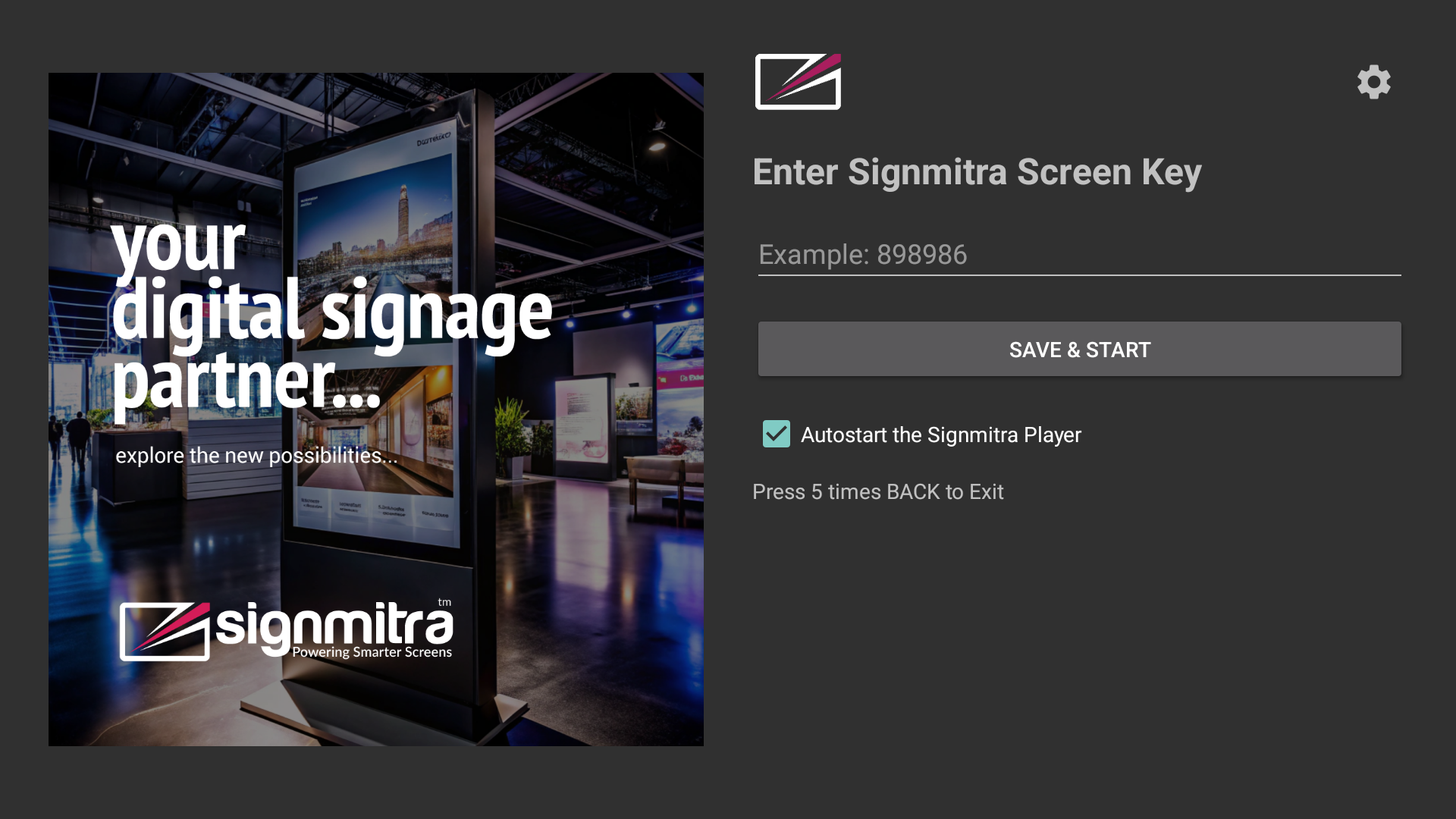
Player app showing Screen Key entry mode
Step 2: Note the screen key
The TV displays a pairing key. Write it down.
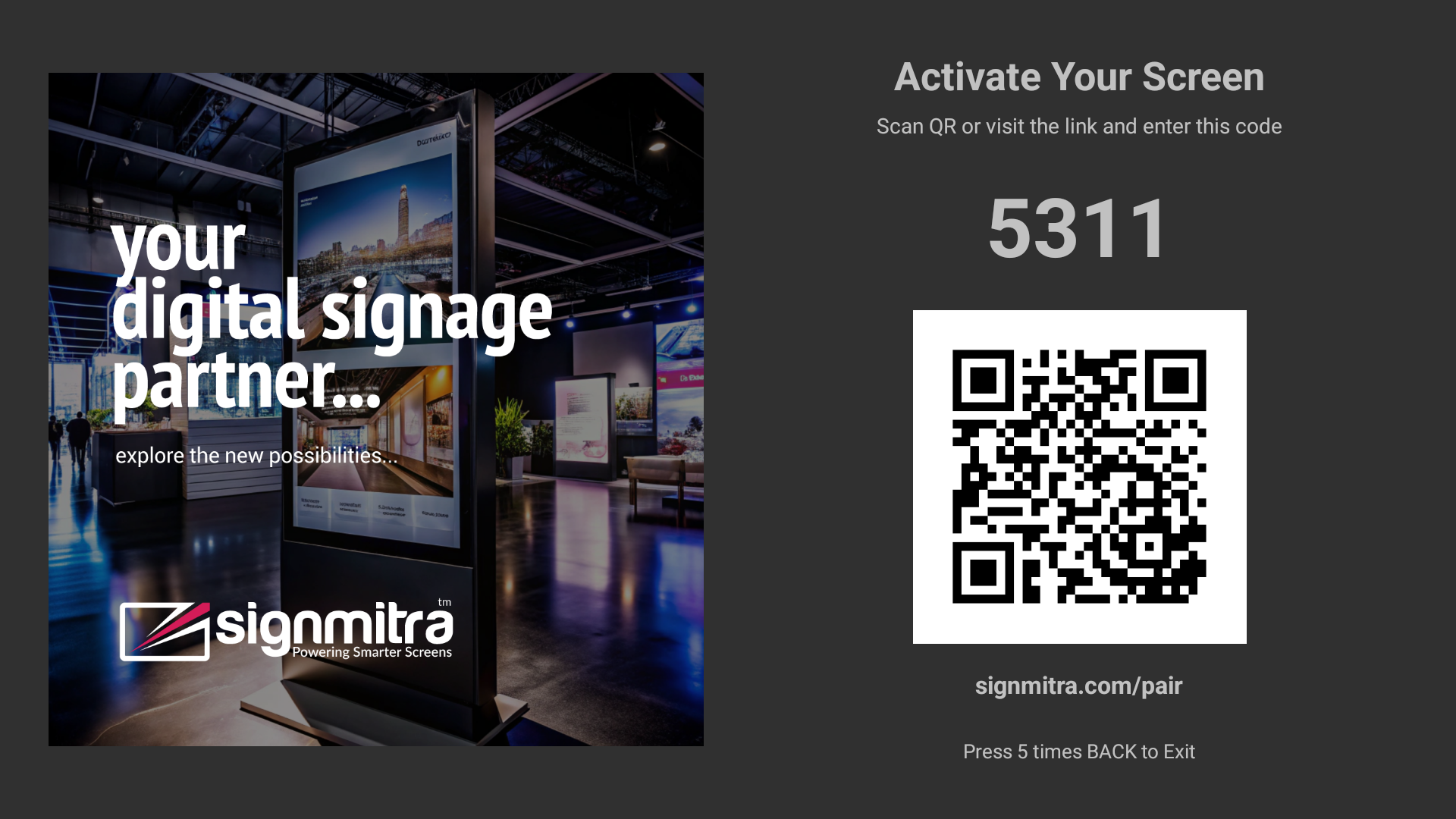
Screen key displayed on TV
Step 3: Enter key in dashboard
In the dashboard, click "Pair Device" → "Screen Key" and enter the code.
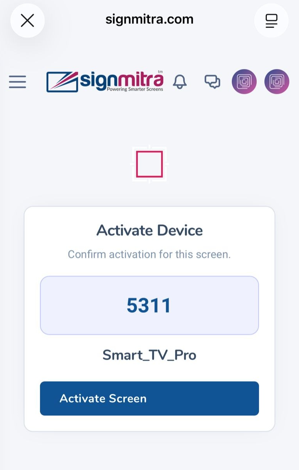
Dashboard screen key entry form
Step 4: Confirm pairing
The screen status changes to Online. Pairing is complete.
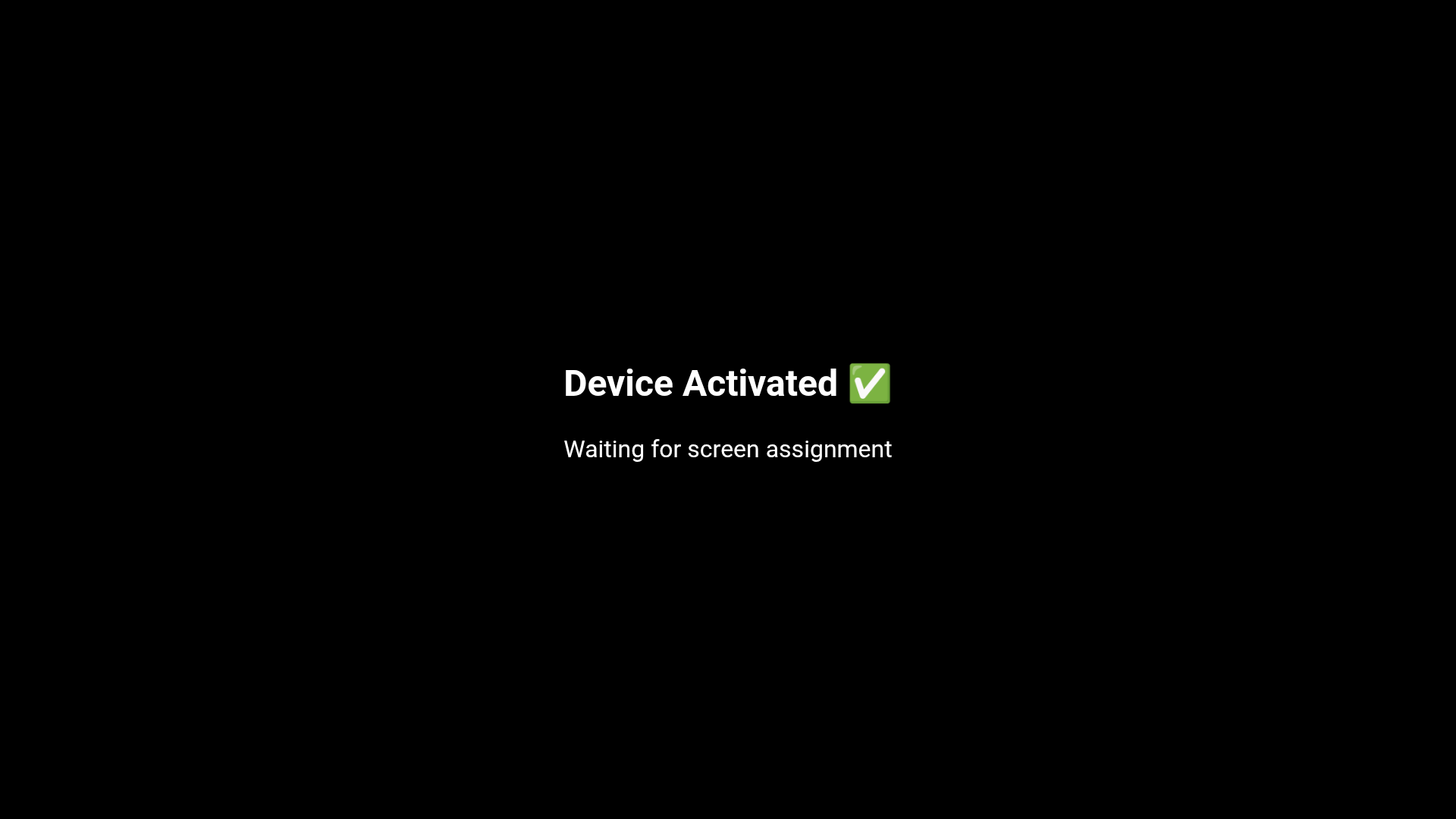
Successful pairing confirmation
Frequently Asked Questions
When should I use Screen Key pairing?
Use Screen Key when the TV is far away, in another room, or when QR scanning is not available.
Was this article helpful?
Related Articles
Search Other Topics
Still need help?
Our team can help you with setup, device pairing, scheduling, and billing.