Help Center
Assign Playlist to Screen

Overview
Assigning a playlist makes it the active content for a screen.
Steps:
1. Go to Screens from the sidebar
2. Click on the screen you want to configure
3. Click "Assign Playlist"
4. Select the playlist from the dropdown
5. Click "Save"
The assigned playlist becomes the default playback for that screen. The player device will download the content and start playing.
You can also assign from the Playlists page by clicking "Assign to Screen" on any playlist.
Note: If you have scheduled playlists, the schedule takes precedence during active time windows.
Steps:
1. Go to Screens from the sidebar
2. Click on the screen you want to configure
3. Click "Assign Playlist"
4. Select the playlist from the dropdown
5. Click "Save"
The assigned playlist becomes the default playback for that screen. The player device will download the content and start playing.
You can also assign from the Playlists page by clicking "Assign to Screen" on any playlist.
Note: If you have scheduled playlists, the schedule takes precedence during active time windows.
Step by Step Guide
Step 1: Open Screens page
Go to Screens from the sidebar.
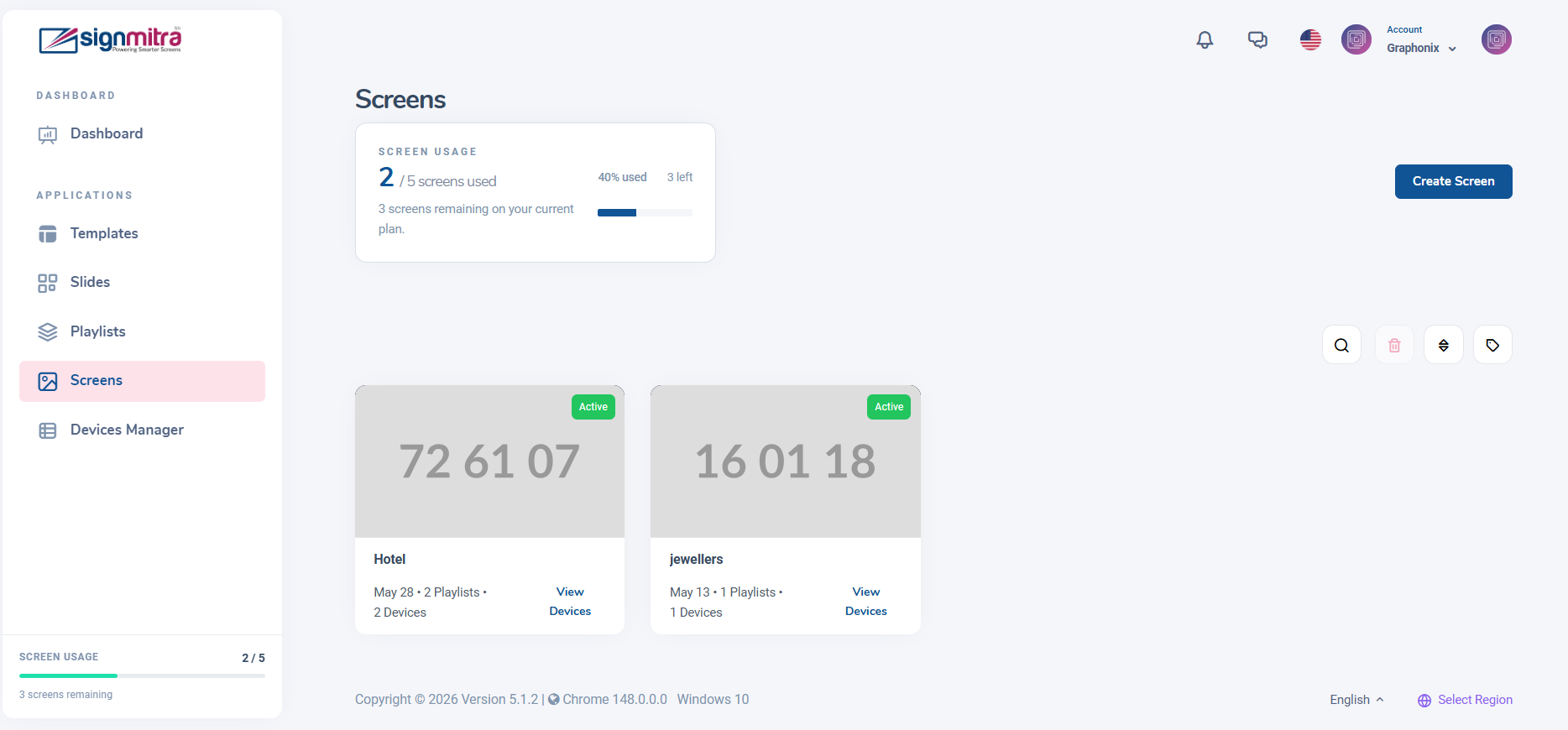
Screens page with list of screens
Step 2: Select a screen
Click on the screen you want to configure.
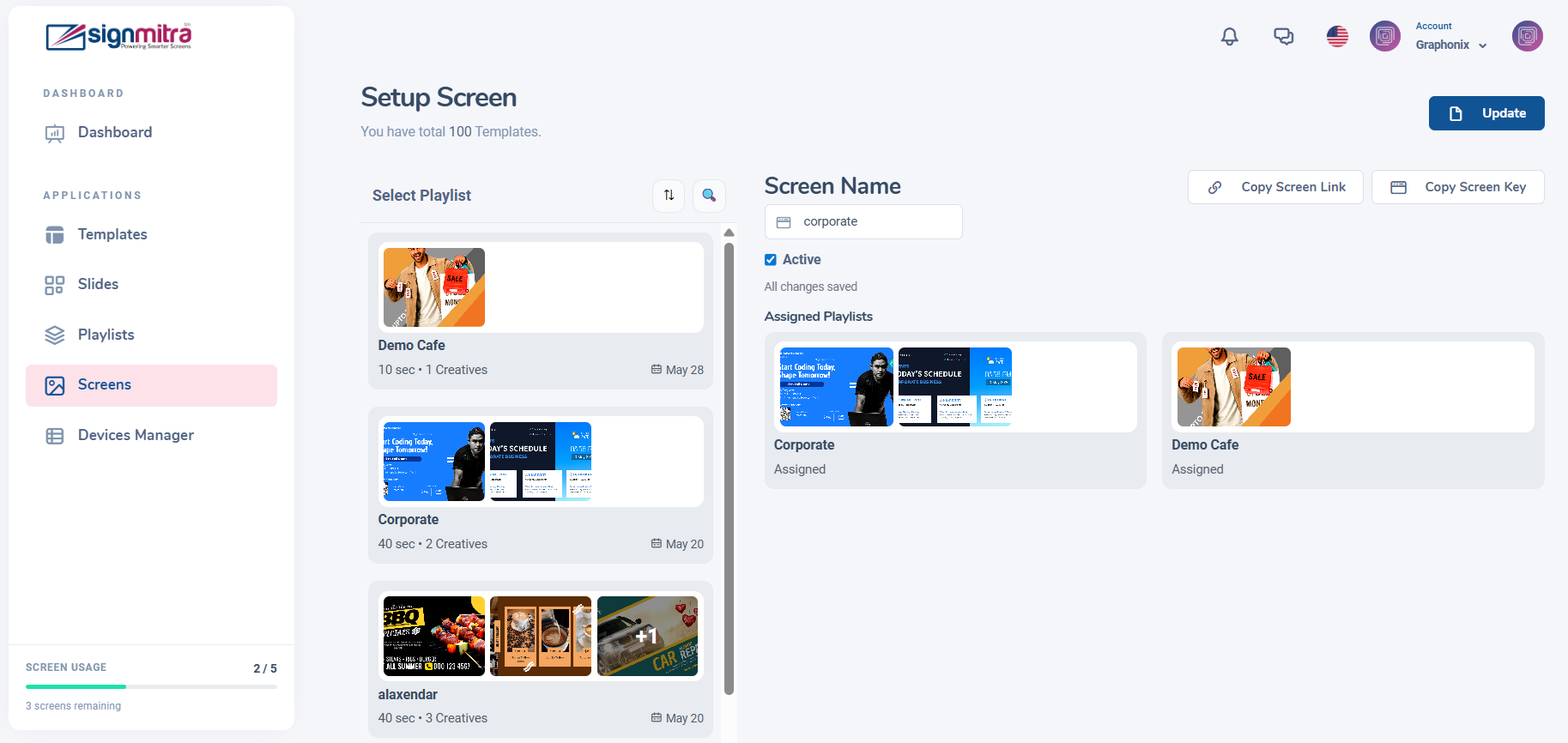
Screen detail page
Step 3: Click Assign Playlist
Click "Assign Playlist" button and select a playlist from the dropdown.
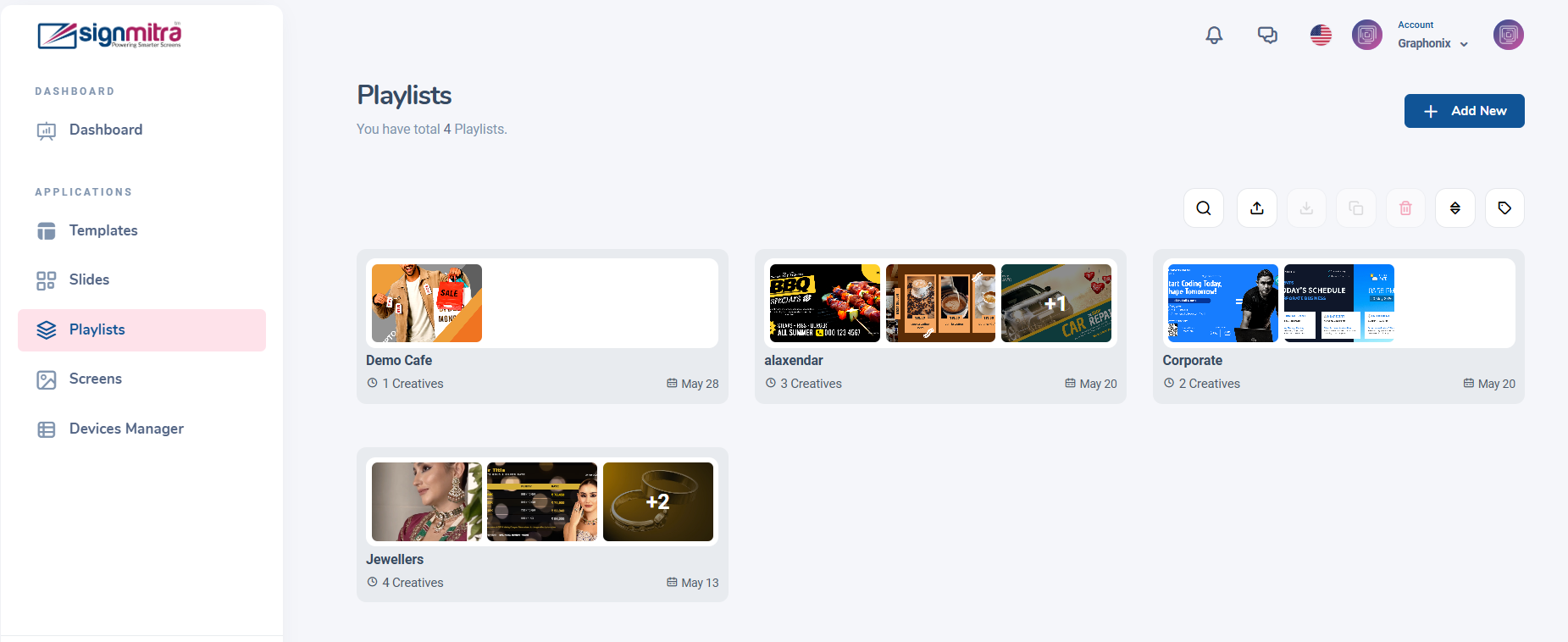
Assign playlist dropdown on screen
Step 4: Save and sync
Click Save. The player device will download and start playing the content.

Screen showing syncing status
Frequently Asked Questions
Can I assign the same playlist to multiple screens?
Yes, one playlist can be assigned to as many screens as you need.
Was this article helpful?
Related Articles
Search Other Topics
Still need help?
Our team can help you with setup, device pairing, scheduling, and billing.