Help Center
Invite Team Members

Overview
Give team members access to manage specific areas of your account.
Access: Profile dropdown → Team Members
Steps:
1. Click "Invite" or "Add Member"
2. Enter the team member name and email
3. Select their role and permissions
4. Click "Send Invitation"
5. The team member receives an email with login instructions
Team members can manage slides, playlists, and screens based on their assigned role. They cannot access billing or account deletion.
Access: Profile dropdown → Team Members
Steps:
1. Click "Invite" or "Add Member"
2. Enter the team member name and email
3. Select their role and permissions
4. Click "Send Invitation"
5. The team member receives an email with login instructions
Team members can manage slides, playlists, and screens based on their assigned role. They cannot access billing or account deletion.
Step by Step Guide
Step 1: Open Team Members
Click Profile dropdown → Team Members in the header.
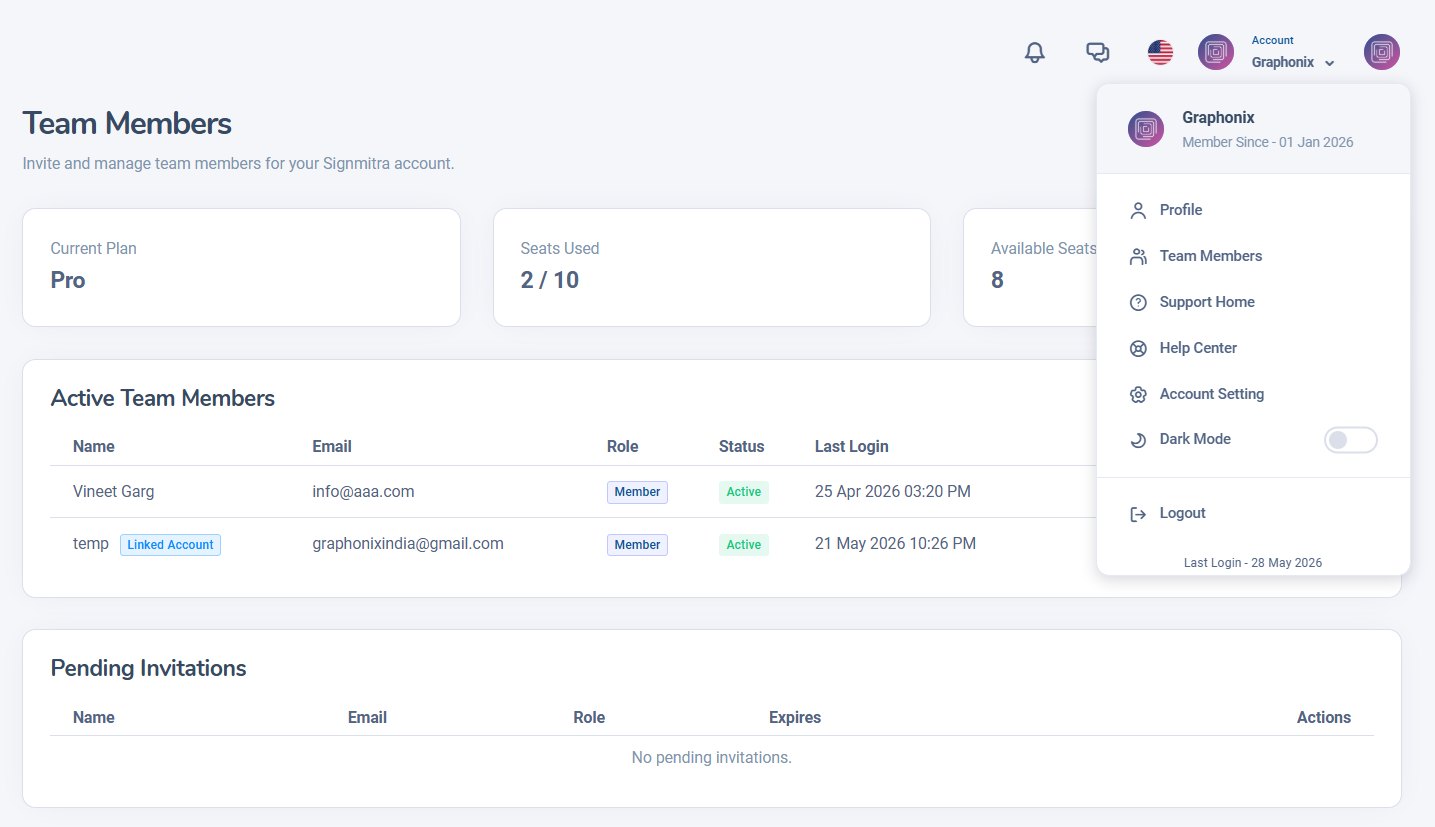
Team Members page
Step 2: Click Invite
Click the "Invite" or "Add Member" button.
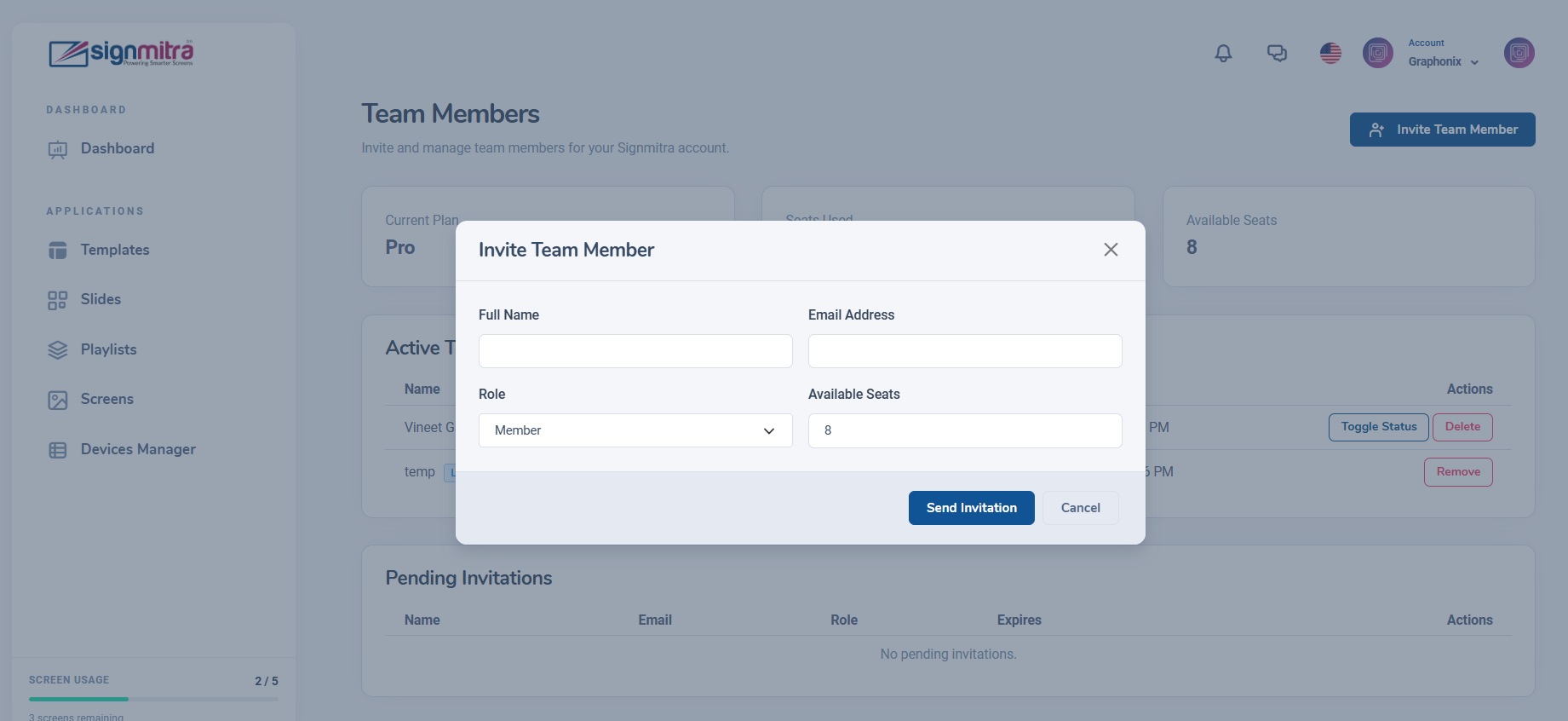
Invite button on team page
Step 3: Enter member details
Fill in the name, email, and role for the new team member.
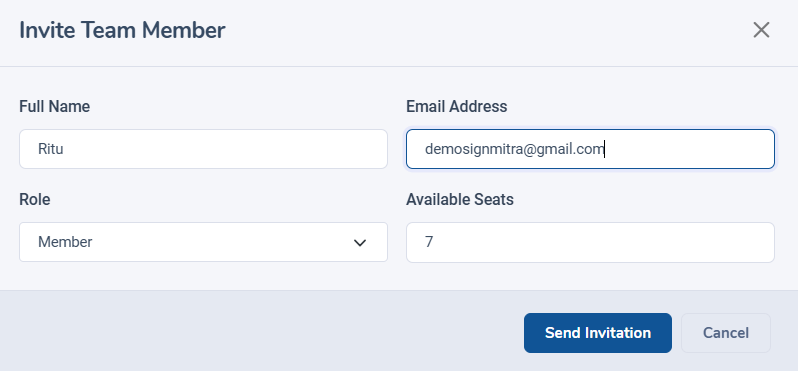
Team member invitation form
Step 4: Send invitation
Click Send. The team member receives an email with login instructions.
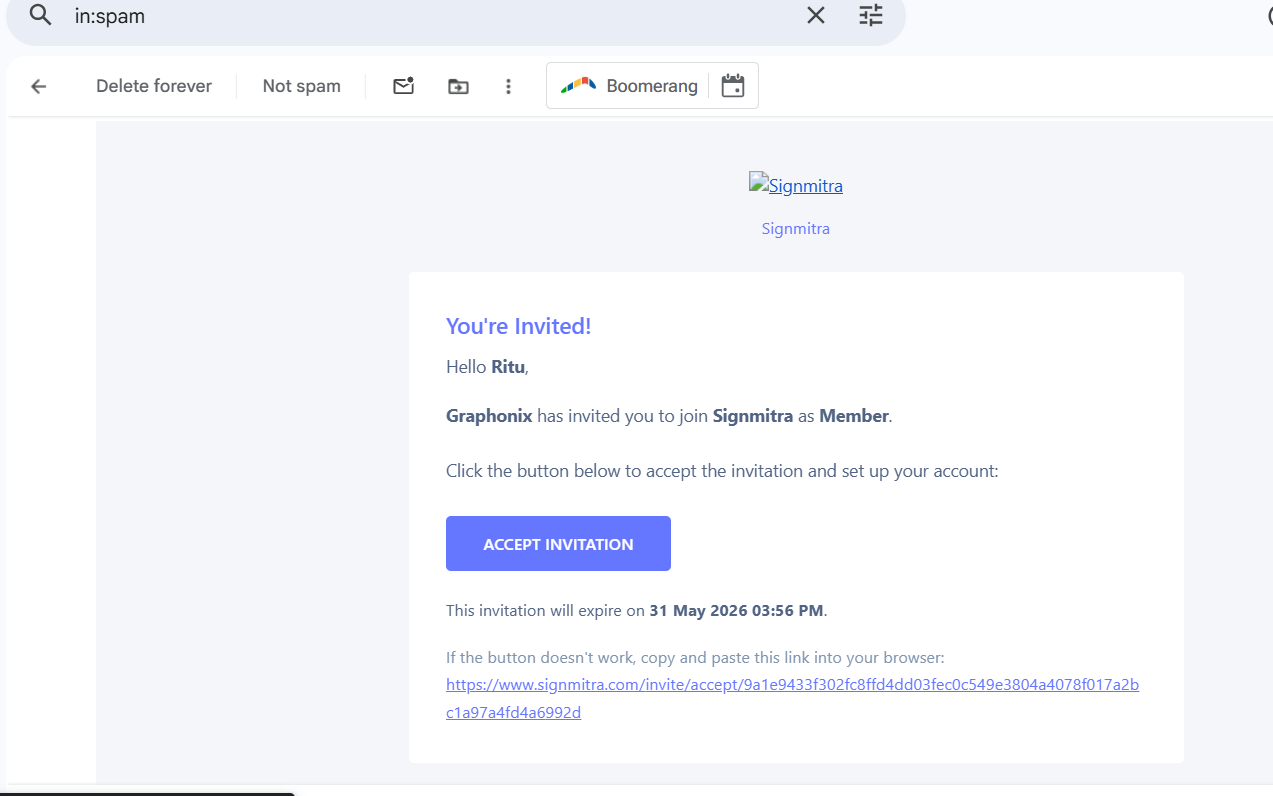
Invitation sent confirmation
Frequently Asked Questions
Can team members access billing?
No, team members cannot access billing, payment, or account deletion features.
Was this article helpful?
Related Articles
- No related articles.
Search Other Topics
Still need help?
Our team can help you with setup, device pairing, scheduling, and billing.