Help Center
Buy Additional Storage

Overview
Need more storage? Buy additional storage packs.
Steps:
1. Go to Subscriptions
2. Look for "Storage" or "Buy More Storage" option
3. Select the storage pack size
4. Complete payment
5. Extra storage is added to your account immediately
Storage is used by:
• Uploaded images
• Uploaded videos
• Slide designs
• Widget assets
Check your current usage on the dashboard or subscription page.
Steps:
1. Go to Subscriptions
2. Look for "Storage" or "Buy More Storage" option
3. Select the storage pack size
4. Complete payment
5. Extra storage is added to your account immediately
Storage is used by:
• Uploaded images
• Uploaded videos
• Slide designs
• Widget assets
Check your current usage on the dashboard or subscription page.
Step by Step Guide
Step 1: Open Subscription page
Go to Subscriptions from the sidebar.
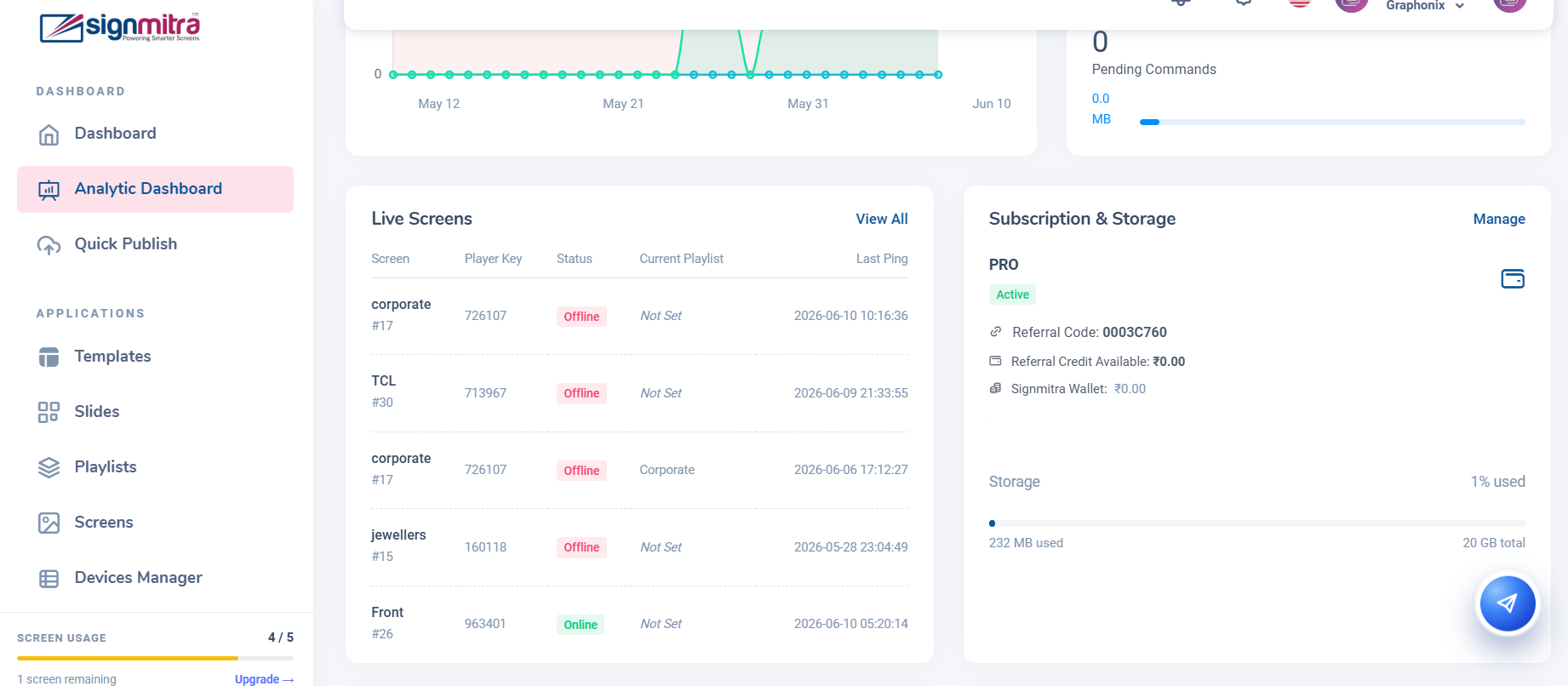
Subscription page showing storage section
Step 2: Click Buy Storage
Find the storage section and click "Buy More Storage".
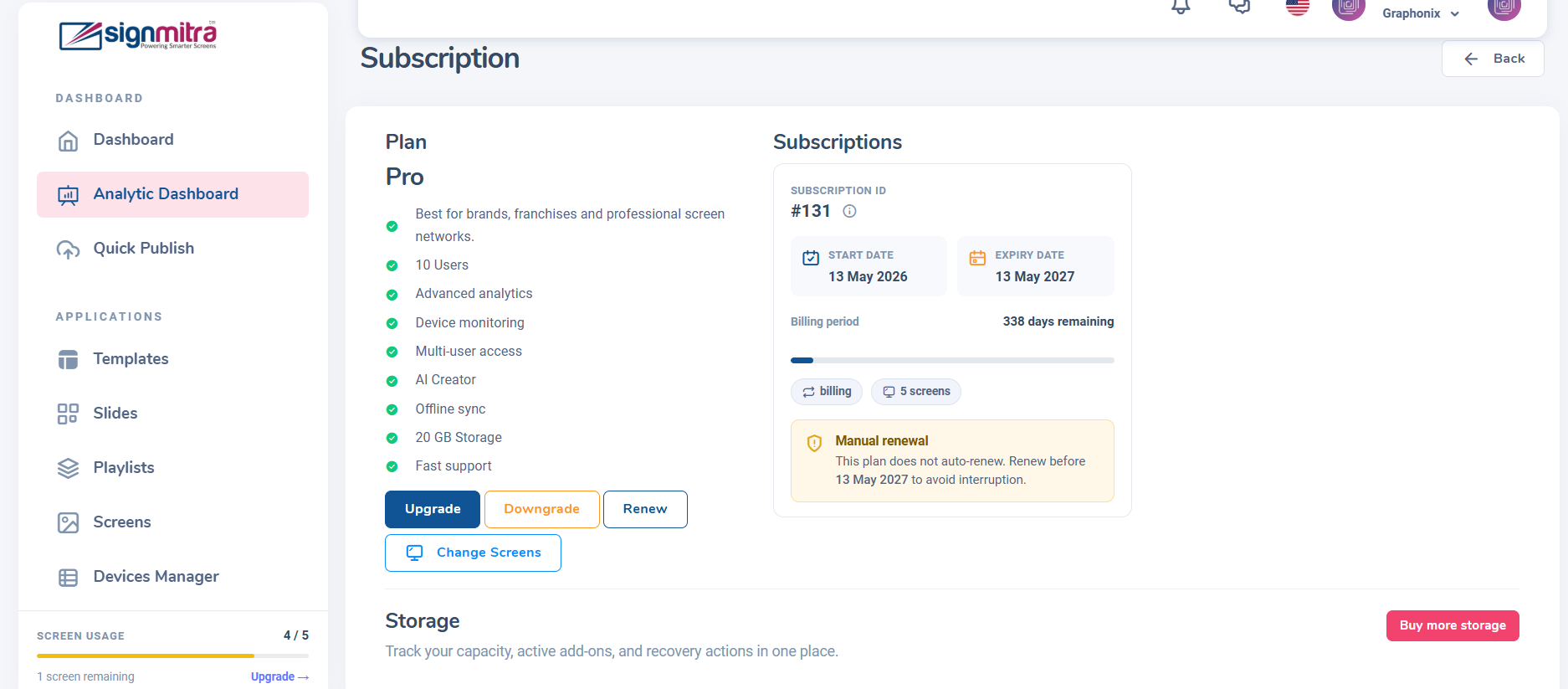
Buy More Storage button
Step 3: Select storage pack
Choose the amount of extra storage you need.
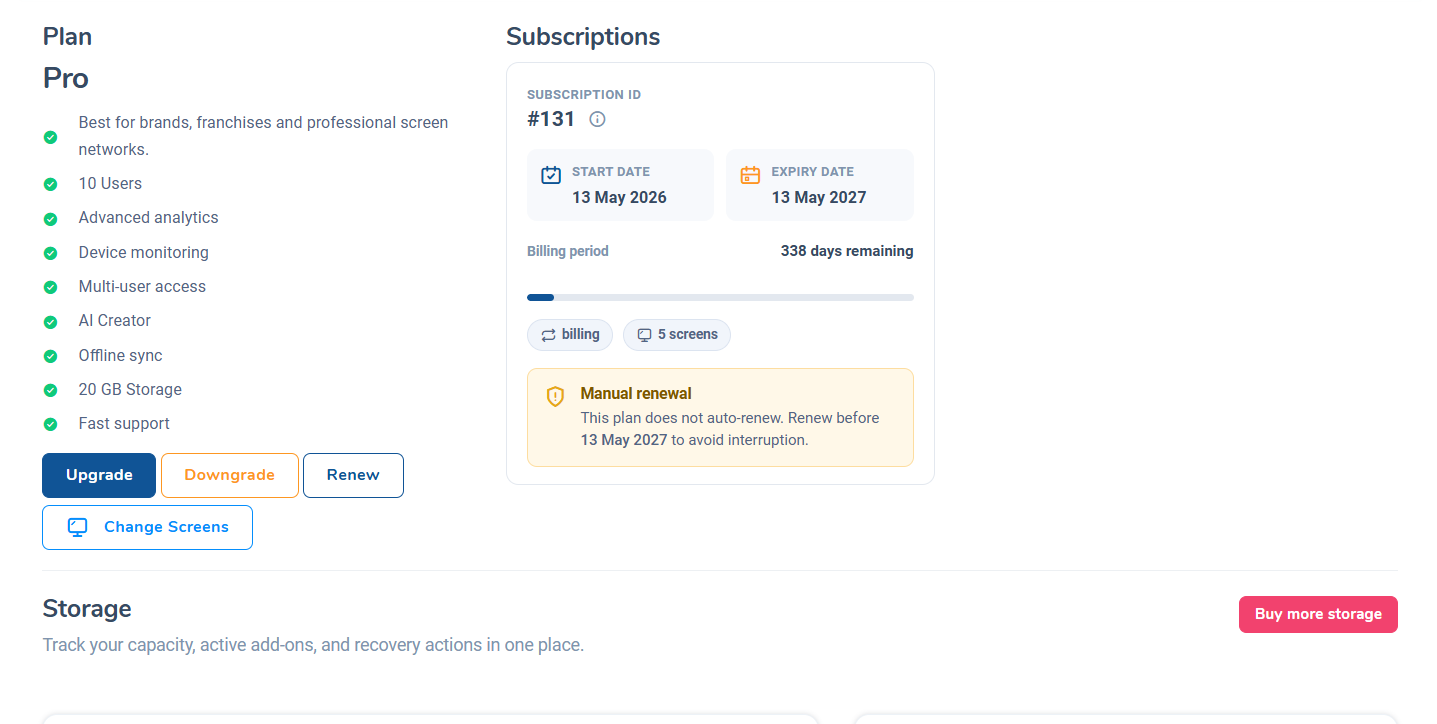
Storage pack options
Step 4: Complete purchase
Pay for the storage pack. Extra space is added immediately.
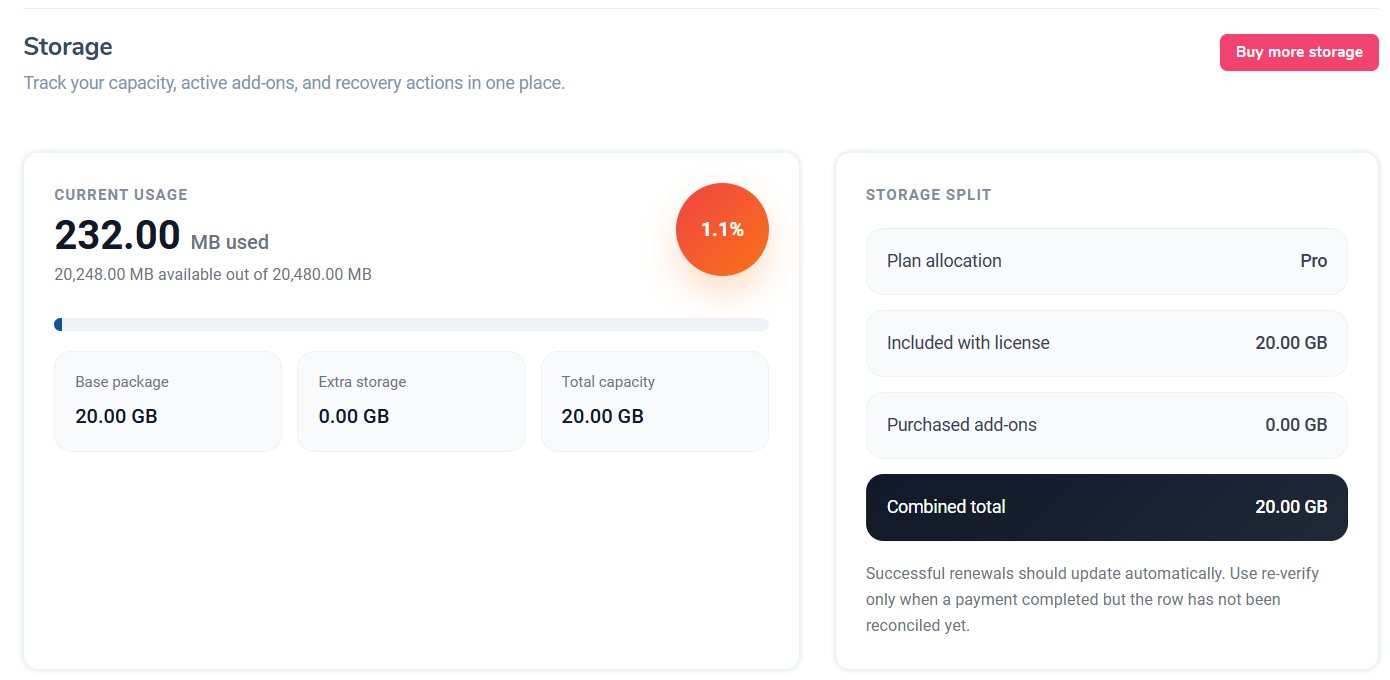
Storage purchased confirmation
Frequently Asked Questions
Does extra storage have its own expiry?
Yes, purchased storage packs have their own expiry date separate from your subscription.
Was this article helpful?
Related Articles
Search Other Topics
Still need help?
Our team can help you with setup, device pairing, scheduling, and billing.