Help Center
View Your Subscription

Overview
View your subscription details from the dashboard.
Steps:
1. Click "Subscriptions" in the sidebar, OR
2. Go to Profile dropdown → "Account Setting"
You will see:
• Current plan name and tier
• Number of screens included
• Storage quota and usage
• Subscription start and expiry dates
• Billing cycle (monthly or annual)
• Payment status
From this page you can upgrade, downgrade, or renew your subscription.
Steps:
1. Click "Subscriptions" in the sidebar, OR
2. Go to Profile dropdown → "Account Setting"
You will see:
• Current plan name and tier
• Number of screens included
• Storage quota and usage
• Subscription start and expiry dates
• Billing cycle (monthly or annual)
• Payment status
From this page you can upgrade, downgrade, or renew your subscription.
Step by Step Guide
Step 1: Open Subscriptions page
Click "Subscription" in the sidebar or "Account Setting" from profile dropdown.
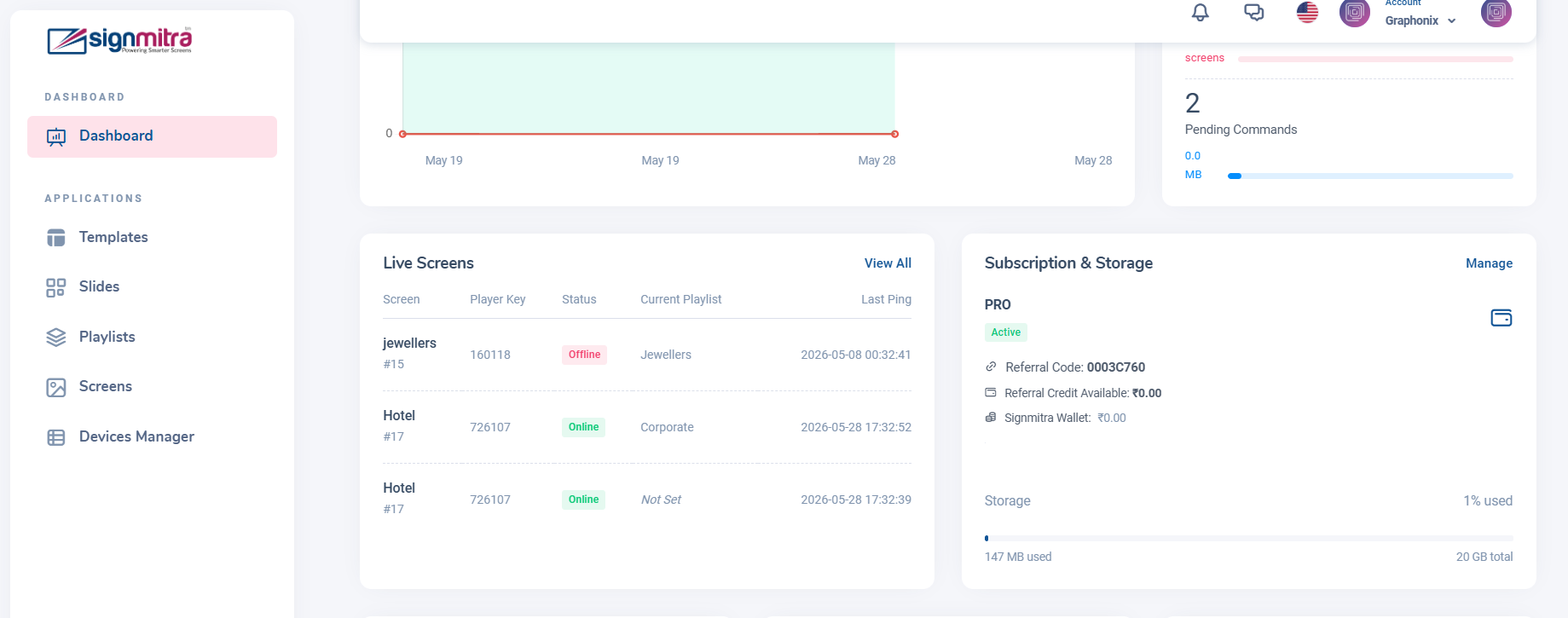
Subscription page showing current plan
Step 2: View plan details
See your plan name, screens included, storage quota, and billing dates.
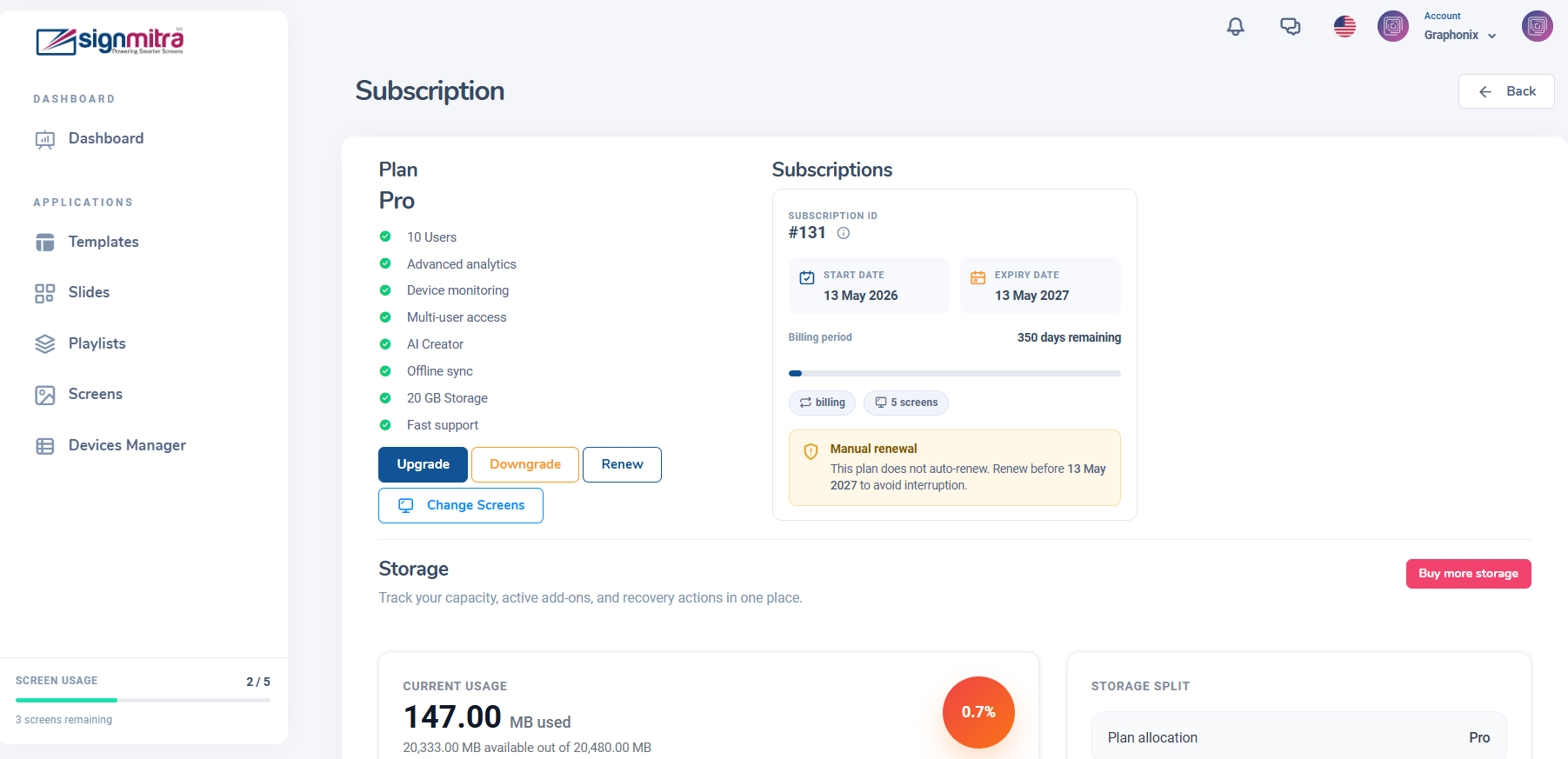
Plan details card with all information
Step 3: Check usage
Review screens used vs allowed, and storage used vs quota.
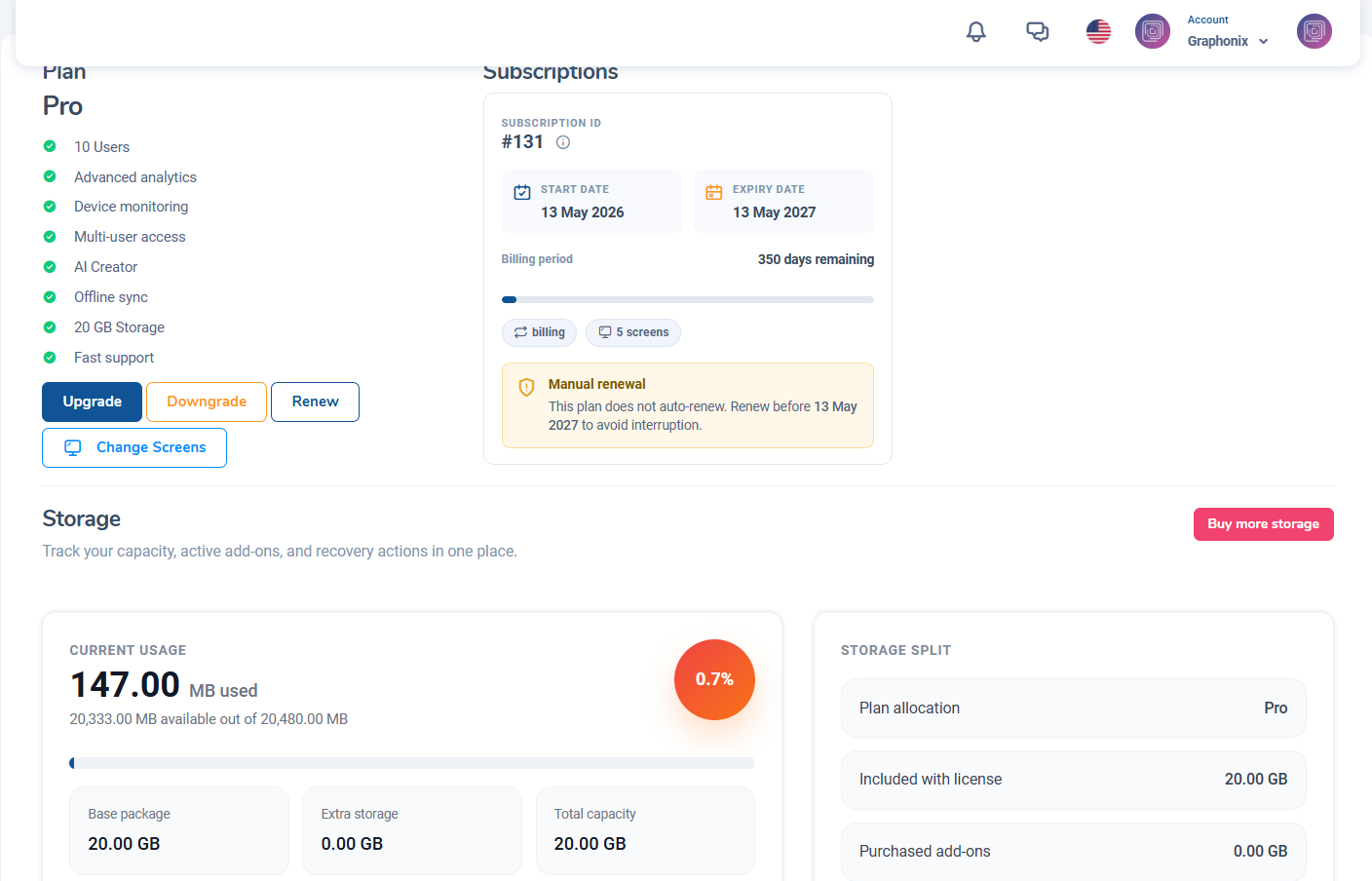
Usage meters for screens and storage
Step 4: Manage subscription
Use the Upgrade, Downgrade, or Renew buttons as needed.
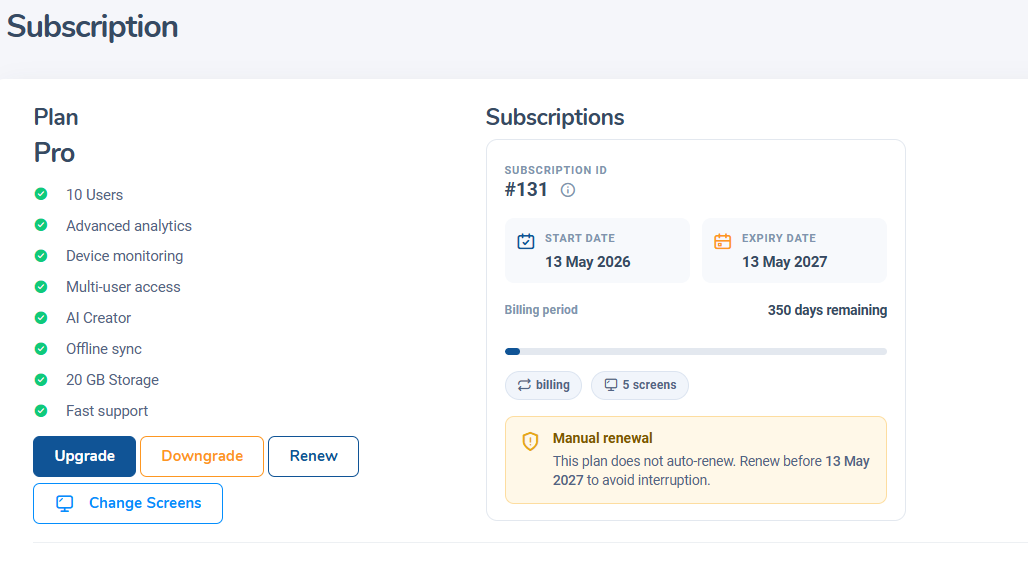
Subscription action buttons
Frequently Asked Questions
Where can I see my subscription expiry date?
Go to Subscriptions in the sidebar. The expiry date is shown in the plan details card.
Was this article helpful?
Related Articles
Search Other Topics
Still need help?
Our team can help you with setup, device pairing, scheduling, and billing.