Help Center
Upgrade Your Subscription

Subscriptions & Billing
Upgrade Your Subscription
Move to a higher plan for more screens, storage, and features.
Overview
Upgrade your plan to unlock more screens and features.
Steps:
1. Go to Subscriptions from the sidebar
2. Click "Upgrade Plan" or "Change Plan"
3. Browse available plans
4. Select the plan you want
5. Choose billing cycle (monthly or annual — annual saves 10%)
6. Choose number of screens
7. Apply a coupon code if you have one
8. Complete payment via your preferred method
9. Your account is upgraded immediately
Upgrade benefits:
• Access to more screens
• Increased storage space
• Premium features unlocked
• Priority support
Steps:
1. Go to Subscriptions from the sidebar
2. Click "Upgrade Plan" or "Change Plan"
3. Browse available plans
4. Select the plan you want
5. Choose billing cycle (monthly or annual — annual saves 10%)
6. Choose number of screens
7. Apply a coupon code if you have one
8. Complete payment via your preferred method
9. Your account is upgraded immediately
Upgrade benefits:
• Access to more screens
• Increased storage space
• Premium features unlocked
• Priority support
Step by Step Guide
Step 1: Click Upgrade or Change Plan
From the Subscription page, click "Upgrade Plan".
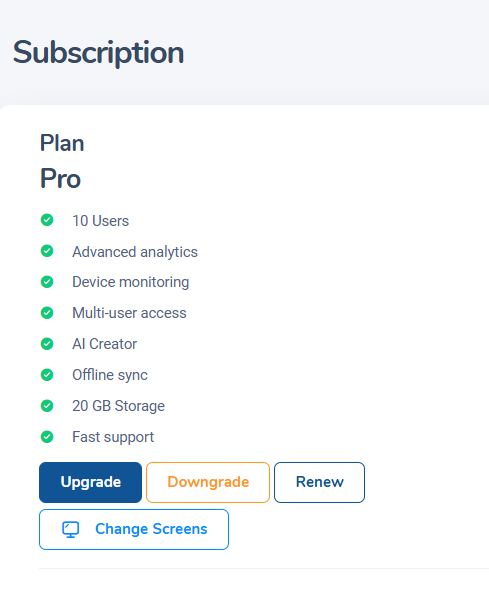
Upgrade Plan button on subscription page
Step 2: Browse available plans
View all available plans with features and pricing.
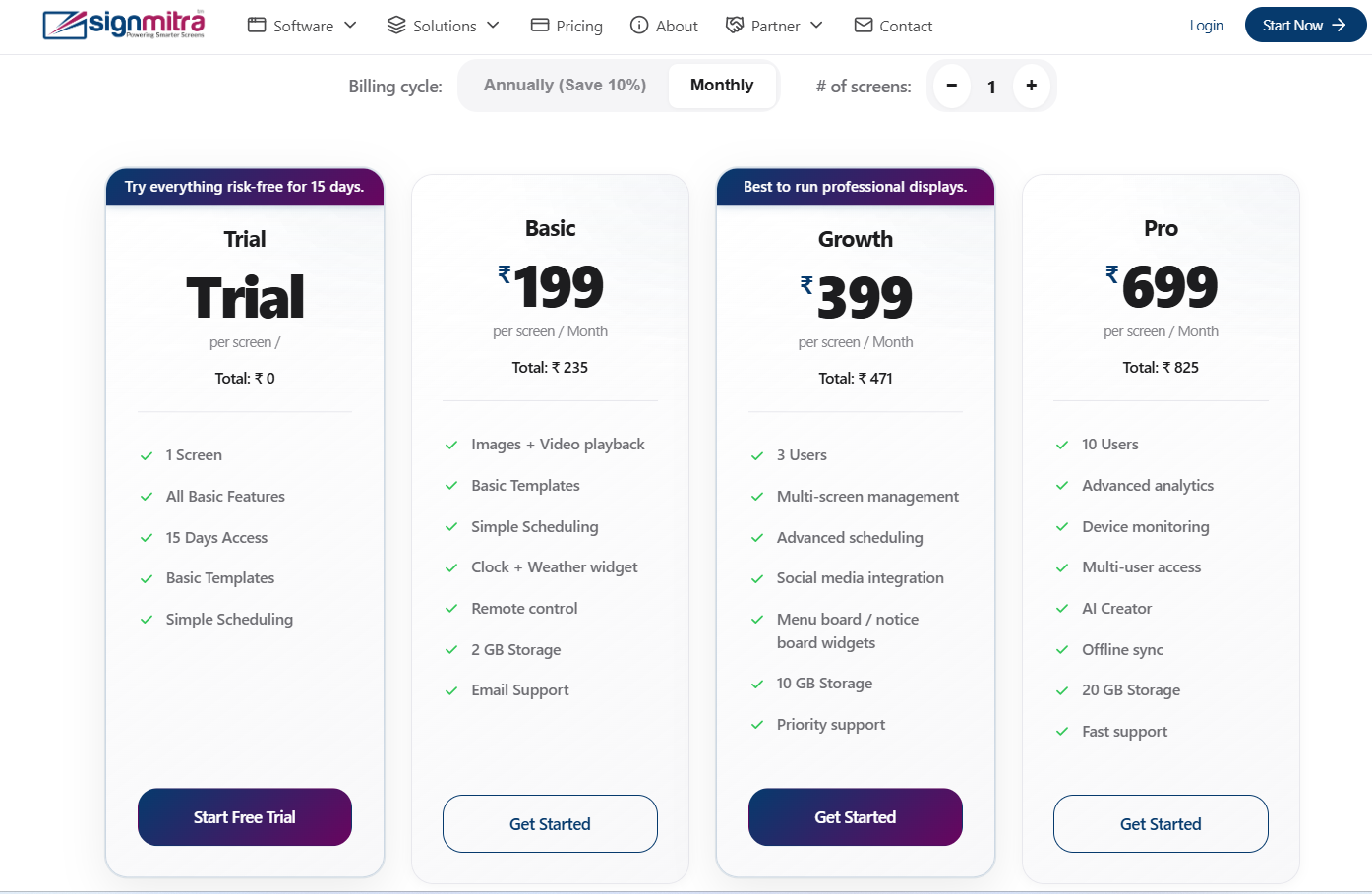
Available plans comparison
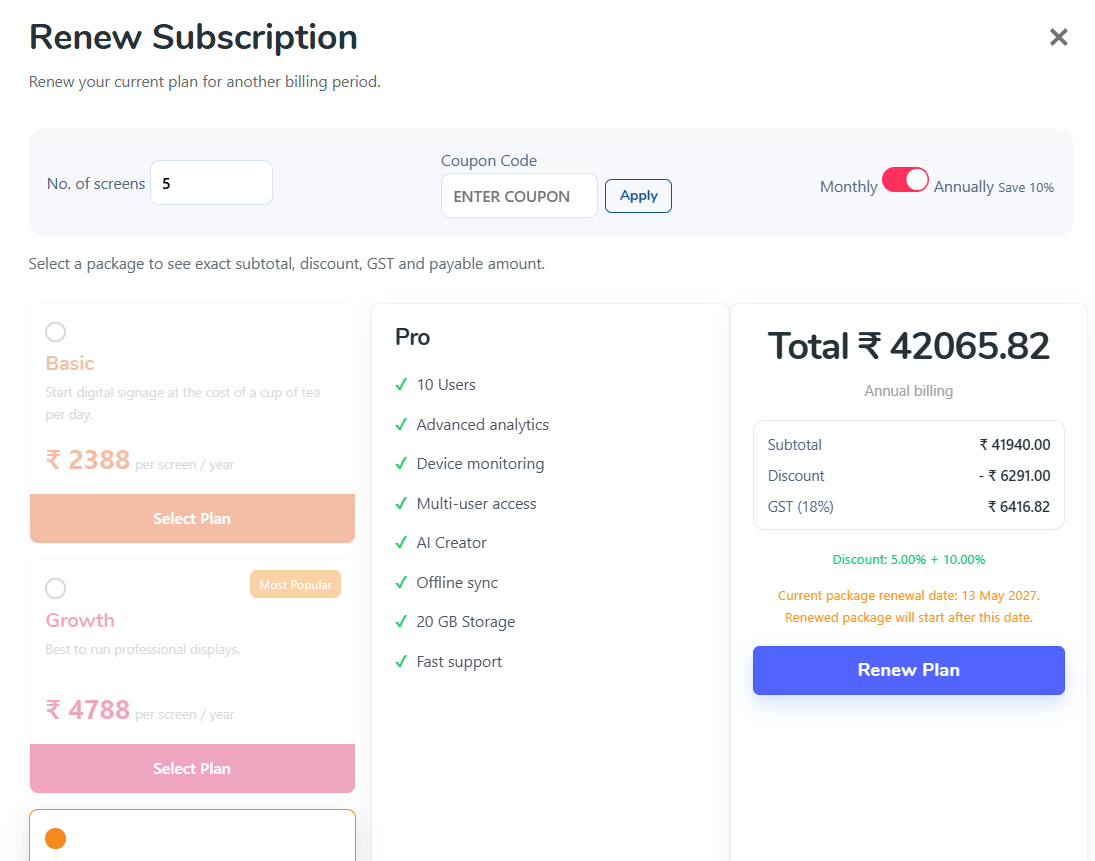
Step 3: Select plan and billing cycle
Choose your plan and billing cycle (monthly or annual).
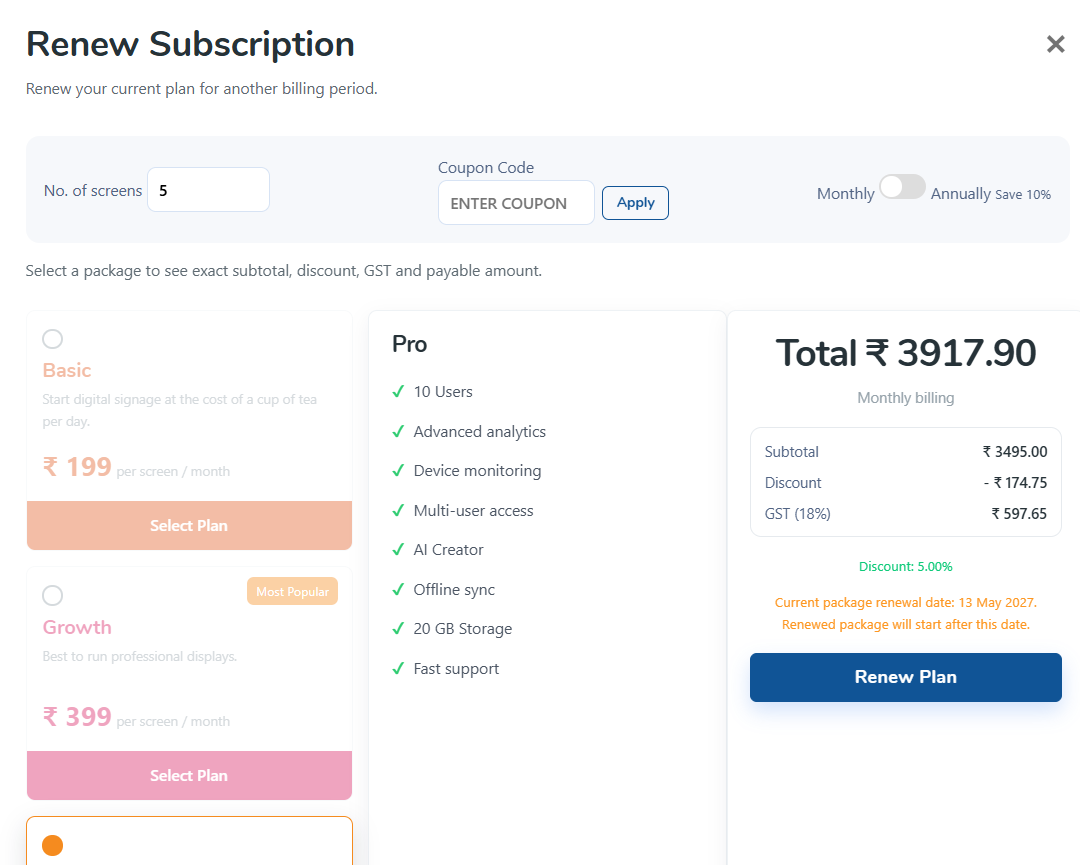
Plan selection with billing toggle
Step 4: Complete payment
Enter payment details and confirm. Your account upgrades immediately.
Payment checkout form
Frequently Asked Questions
Is there a discount for annual billing?
Yes, annual billing saves 10% compared to monthly billing.
Was this article helpful?
Related Articles
Search Other Topics
Still need help?
Our team can help you with setup, device pairing, scheduling, and billing.