Help Center
Dashboard Overview
Overview
The Signmitra Dashboard is the control center of your account.
Sidebar Navigation (left side):
• Dashboard – Overview with key metrics
• Slides – Create and manage slide designs
• Playlists – Organize slides into playlists
• Screens – Create and manage screens
• Devices Manager – Pair and manage player devices
• Subscription – View and manage your plan
• Profile – Set up your public profile (Home, About, Services, Reviews, Skills, Resume, Portfolio, Team, Facts)
• Blog – Create posts, categories, tags
• Settings – General, SEO, Service Settings, Custom Domain
• Manage Features – Toggle profile features
• Appointment – Manage bookings
• Layouts / Layouts Banners – Choose profile layout
• PWA – Configure Progressive Web App
• Feedback – Rate Signmitra
• View Profile – Preview your public profile
• Deactivate Account – Temporarily disable your account
Top Header Bar:
• Notifications bell – View recent alerts
• Support Chats – Chat with support team
• Language Switcher – Change interface language
• Dark Mode toggle – Switch to dark theme
• Profile dropdown – Access Profile, Team Members, Support Home, Help Center, Account Settings, Logout
The dashboard shows your total screens, online/offline counts, active playlists, and storage usage.
Sidebar Navigation (left side):
• Dashboard – Overview with key metrics
• Slides – Create and manage slide designs
• Playlists – Organize slides into playlists
• Screens – Create and manage screens
• Devices Manager – Pair and manage player devices
• Subscription – View and manage your plan
• Profile – Set up your public profile (Home, About, Services, Reviews, Skills, Resume, Portfolio, Team, Facts)
• Blog – Create posts, categories, tags
• Settings – General, SEO, Service Settings, Custom Domain
• Manage Features – Toggle profile features
• Appointment – Manage bookings
• Layouts / Layouts Banners – Choose profile layout
• PWA – Configure Progressive Web App
• Feedback – Rate Signmitra
• View Profile – Preview your public profile
• Deactivate Account – Temporarily disable your account
Top Header Bar:
• Notifications bell – View recent alerts
• Support Chats – Chat with support team
• Language Switcher – Change interface language
• Dark Mode toggle – Switch to dark theme
• Profile dropdown – Access Profile, Team Members, Support Home, Help Center, Account Settings, Logout
The dashboard shows your total screens, online/offline counts, active playlists, and storage usage.
Step by Step Guide
Step 1: Sidebar navigation
The left sidebar shows all main navigation items: Dashboard, Slides, Playlists, Screens, Devices Manager, Subscription, Profile, Blog, Settings, and more.
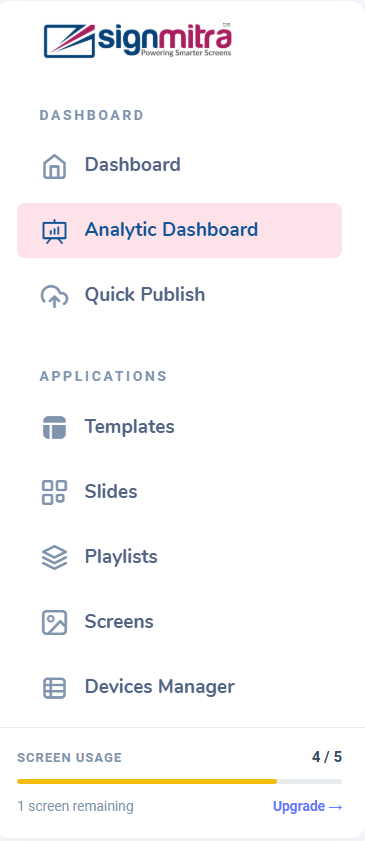
Left sidebar with all menu items
Step 2: Top header bar
The header contains notifications bell, support chats, language switcher, and profile dropdown menu.
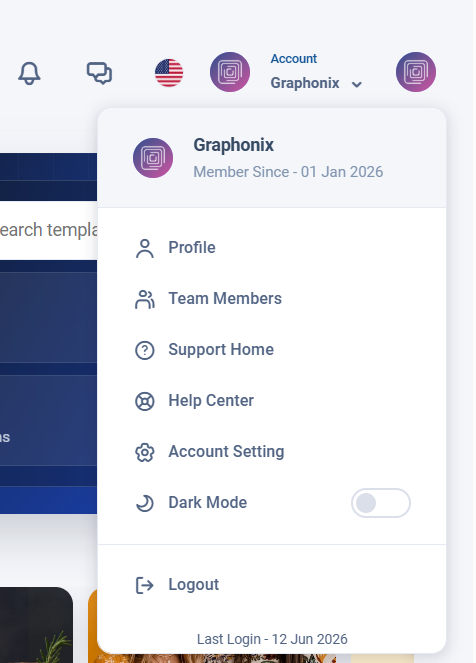
Top header showing notifications, chats, and profile
Step 3: Dashboard overview cards
The main area shows key metrics: total screens, online/offline counts, active playlists, and storage usage.
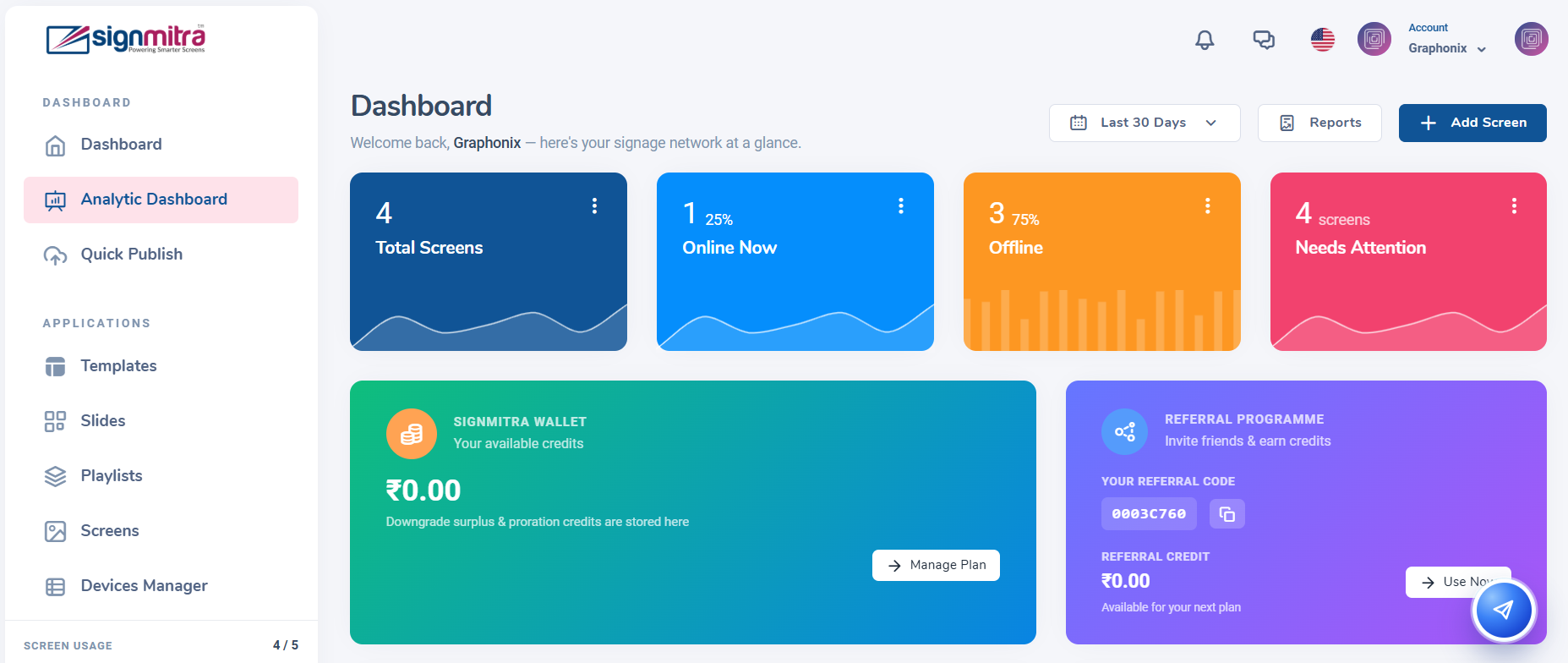
Dashboard KPI cards
Step 4: Profile dropdown menu
Click your avatar to access Profile, Team Members, Support Home, Help Center, Account Settings, Dark Mode, and Logout.
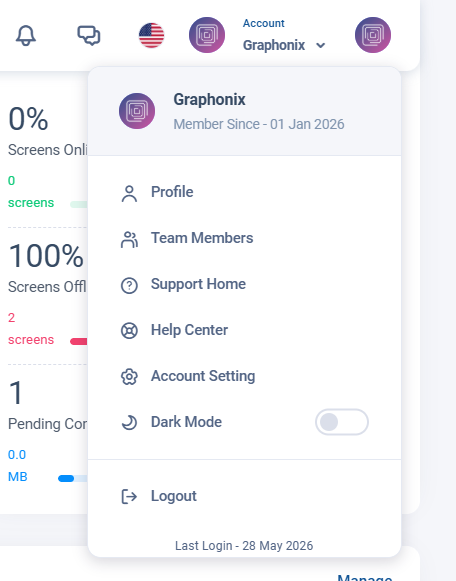
Profile dropdown with all menu items
Frequently Asked Questions
How do I find the Help Center?
Click your profile avatar in the header, then click "Help Center". It opens in a new tab.
Was this article helpful?
Related Articles
Search Other Topics
Still need help?
Our team can help you with setup, device pairing, scheduling, and billing.