Help Center
Login to Your Dashboard

Overview
Log in to your Signmitra account to access the dashboard.
Steps:
1. Go to the Signmitra login page
2. Enter your registered email address
3. Enter your password
4. Click the "Login" button
5. You will be redirected to the Dashboard
If you forgot your password:
• Click "Forgot Password" on the login page
• Enter your email and submit
• Check your inbox for a reset link
• Set a new password and log in
Note: After login, the header bar shows your avatar, notifications bell, support chats, language switcher, and dark mode toggle.
Steps:
1. Go to the Signmitra login page
2. Enter your registered email address
3. Enter your password
4. Click the "Login" button
5. You will be redirected to the Dashboard
If you forgot your password:
• Click "Forgot Password" on the login page
• Enter your email and submit
• Check your inbox for a reset link
• Set a new password and log in
Note: After login, the header bar shows your avatar, notifications bell, support chats, language switcher, and dark mode toggle.
Step by Step Guide
Step 1: Open the login page
Navigate to the Signmitra login page from the website header.
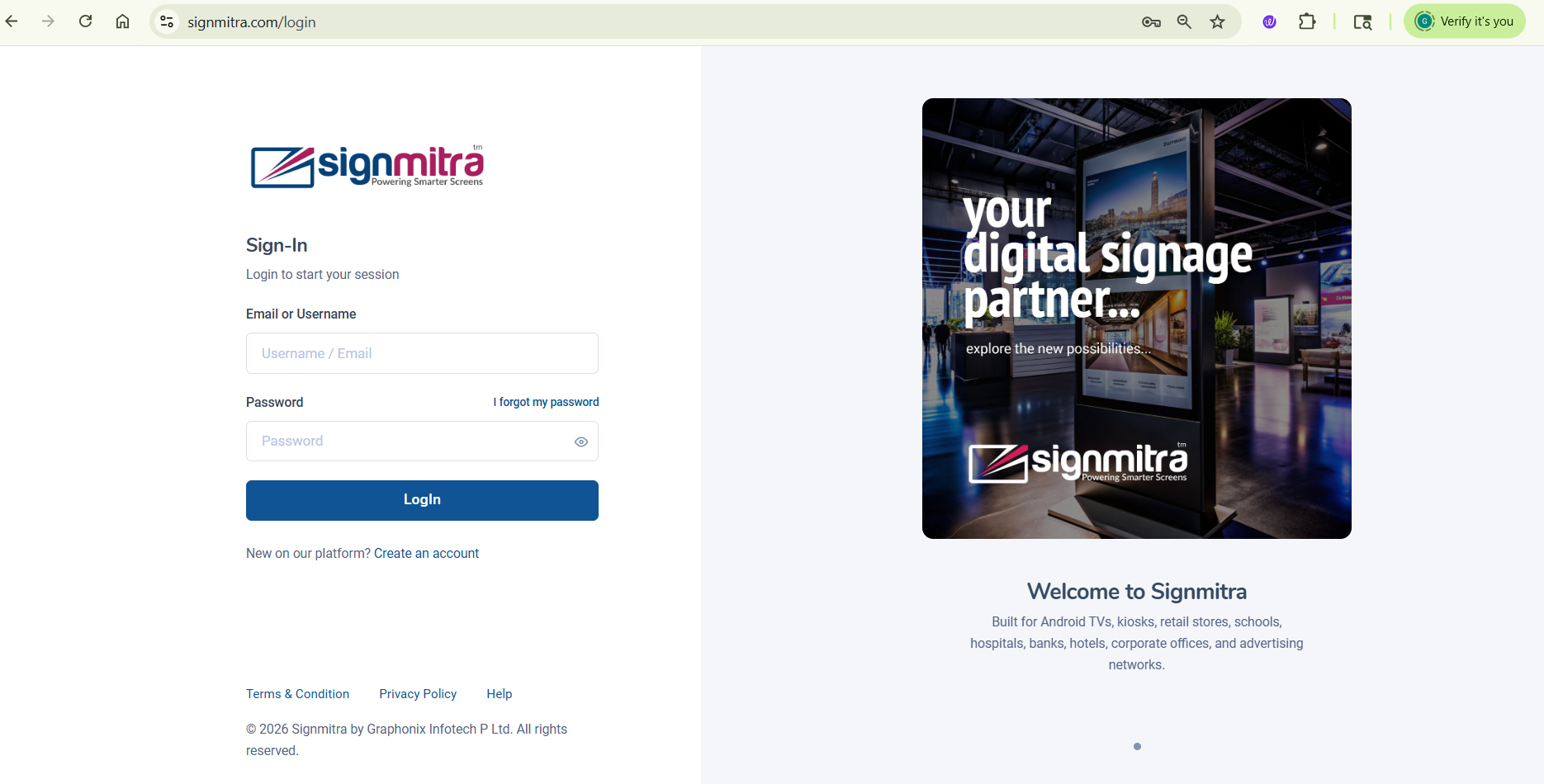
Login page with email and password fields
Step 2: Enter your credentials
Type your registered email address and password.
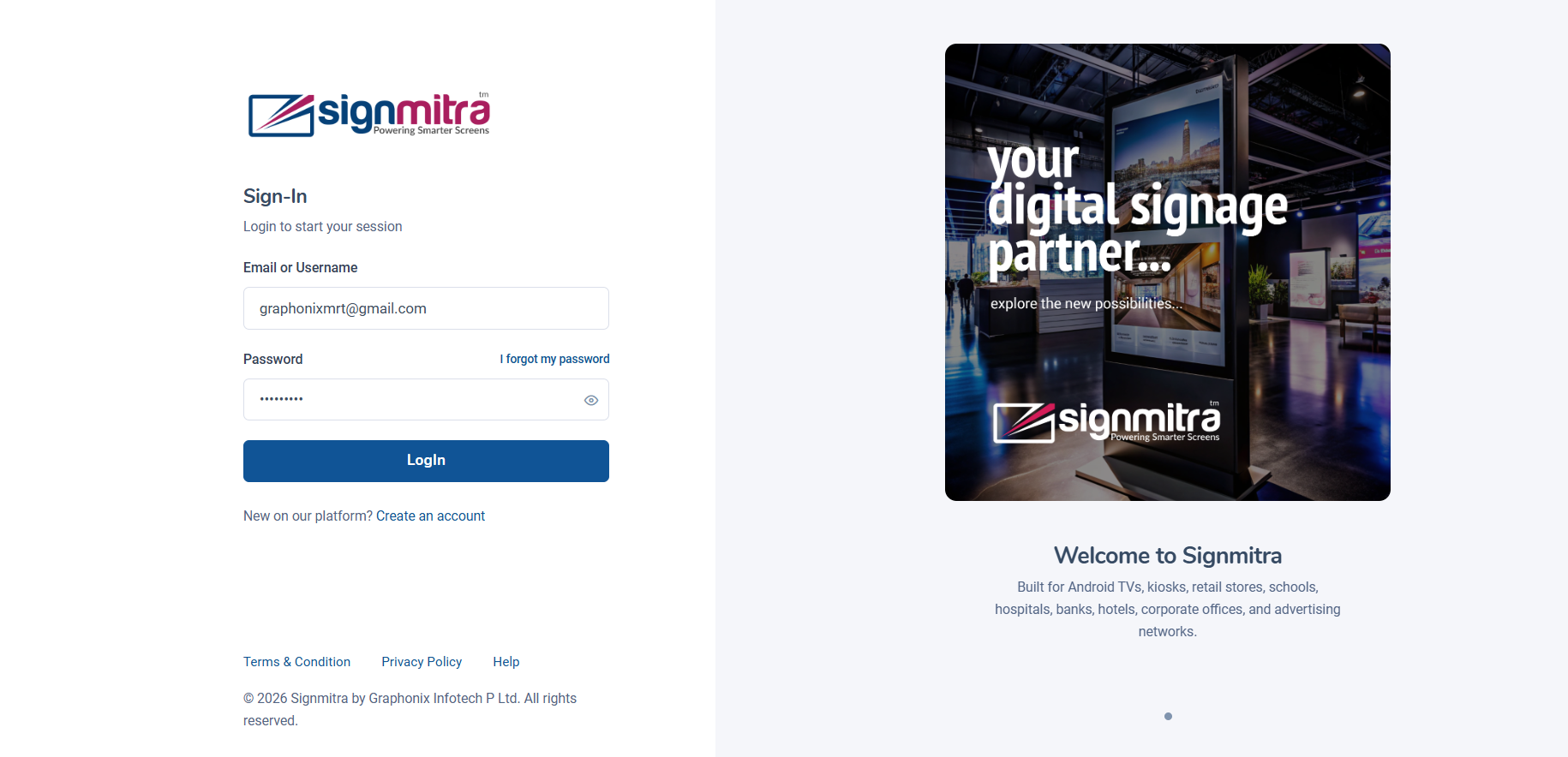
Filling in email and password
Step 3: Click Login
Click the Login button to access your dashboard.
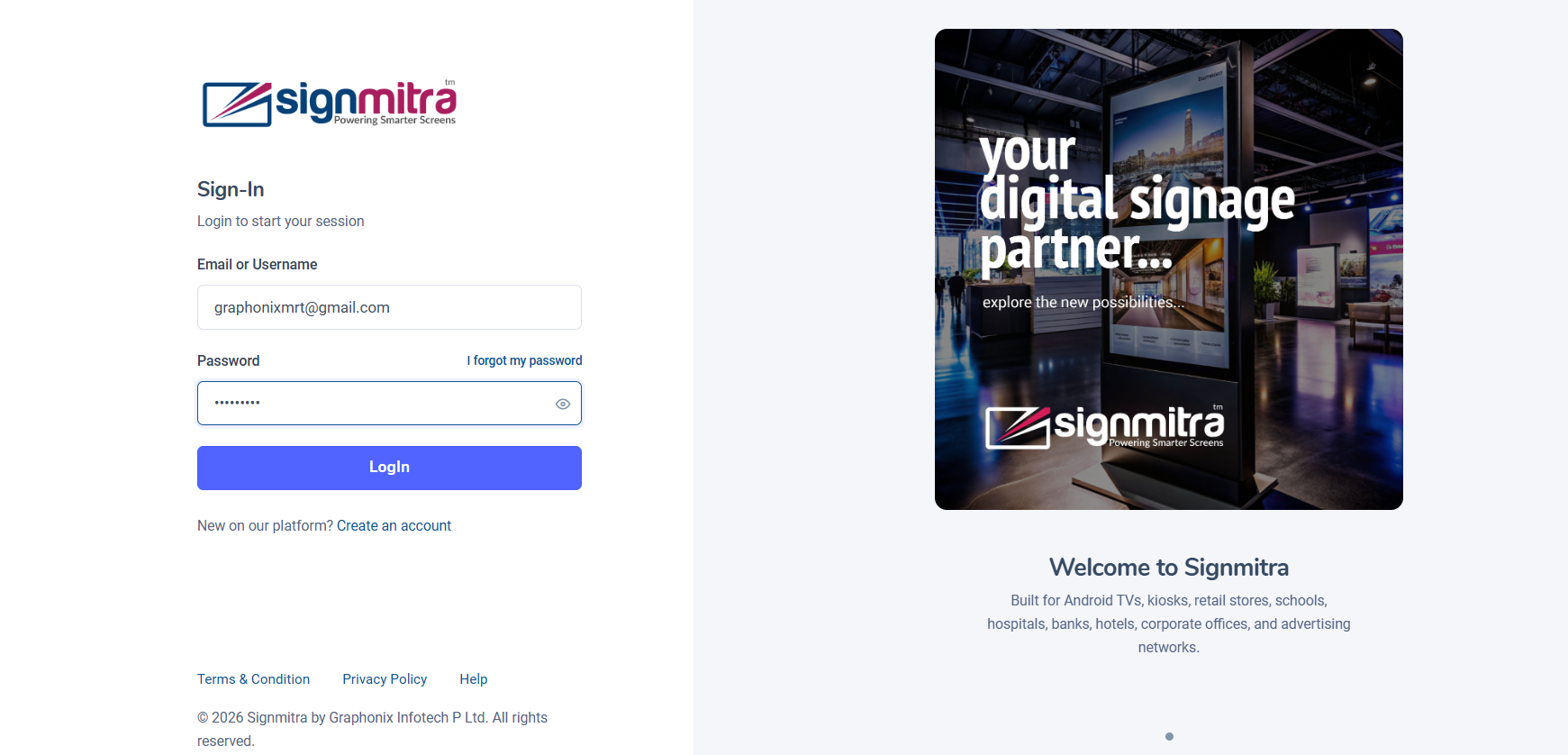
Login button highlighted
Step 4: Dashboard loads
You are redirected to the main dashboard with the sidebar navigation.
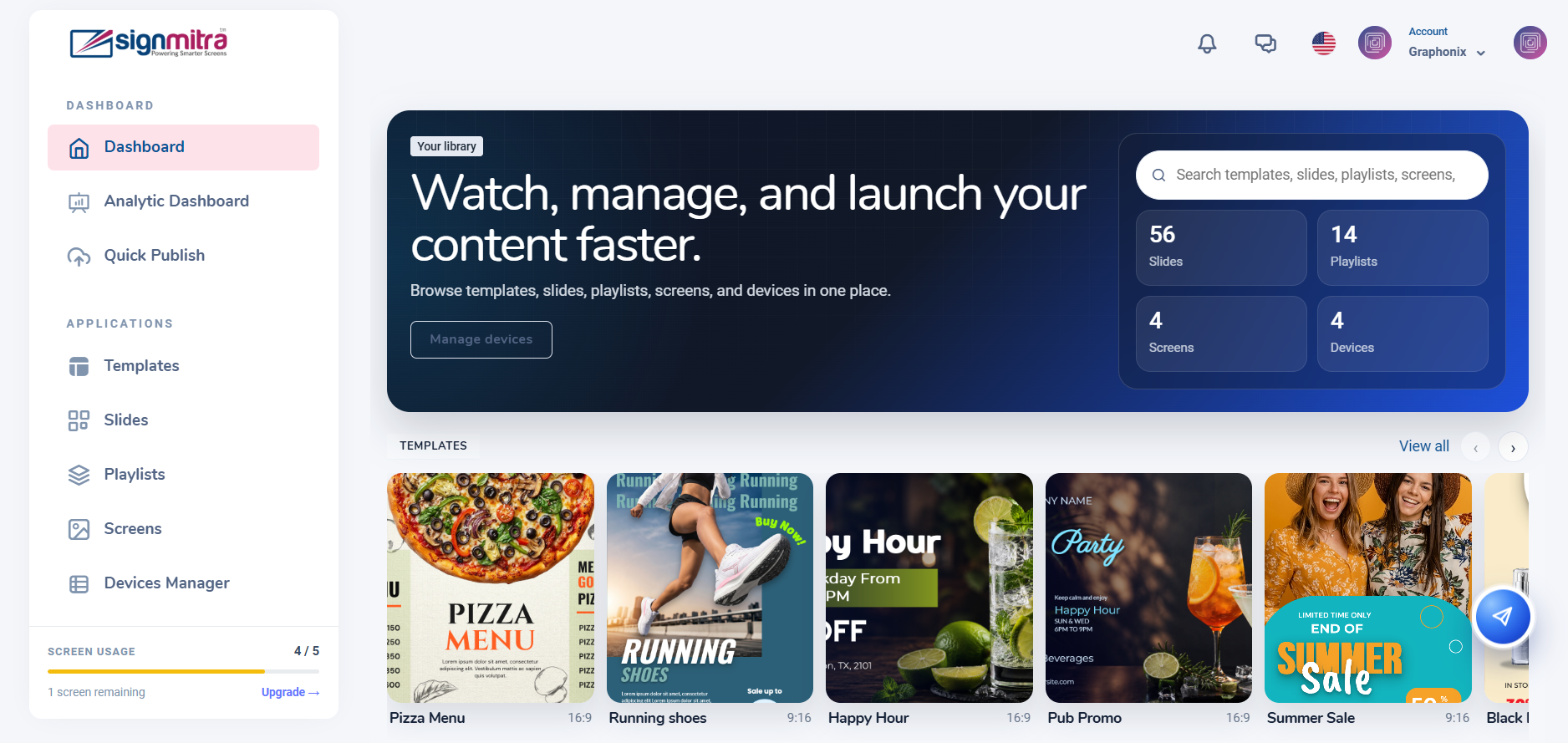
Dashboard view after login
Frequently Asked Questions
I forgot my password. How do I reset it?
Click "Forgot Password" on the login page, enter your email, and follow the link sent to your inbox.
Was this article helpful?
Related Articles
Search Other Topics
Still need help?
Our team can help you with setup, device pairing, scheduling, and billing.