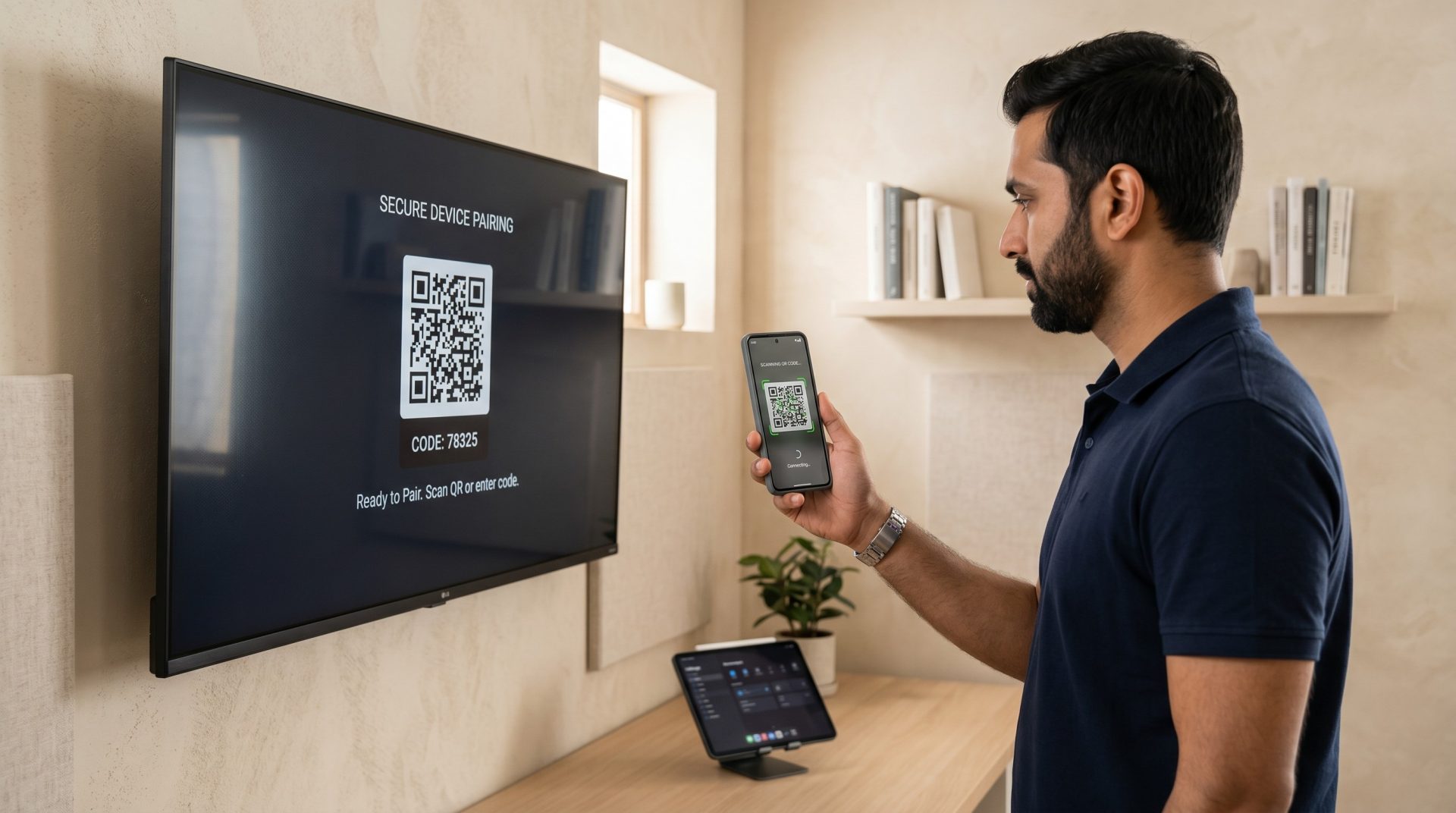
Screen Registration
Pair the displayed registration code with the correct Signmitra account and screen record.
Connect compatible TVs, media players, Windows PCs, Macs and supported commercial smart displays to the Signmitra cloud CMS. Pair each screen, sync approved content and keep previously downloaded media playing through temporary network interruptions.
THE PLAYBACK LAYER BEHIND EVERY SCREEN
Choose a supported player path for the screen, operating system and environment, then manage content through one Signmitra workflow.
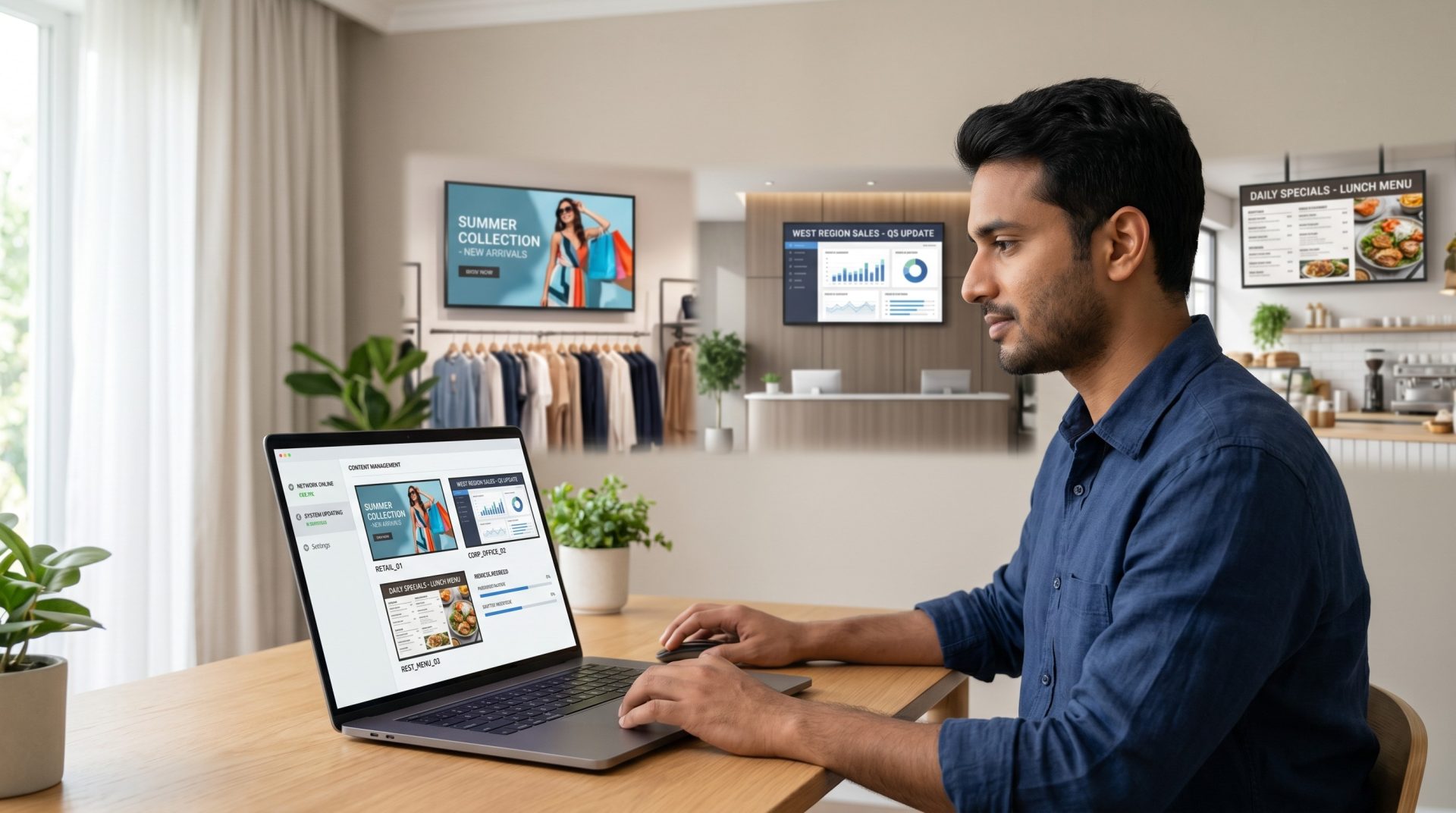
FROM DASHBOARD TO DISPLAY
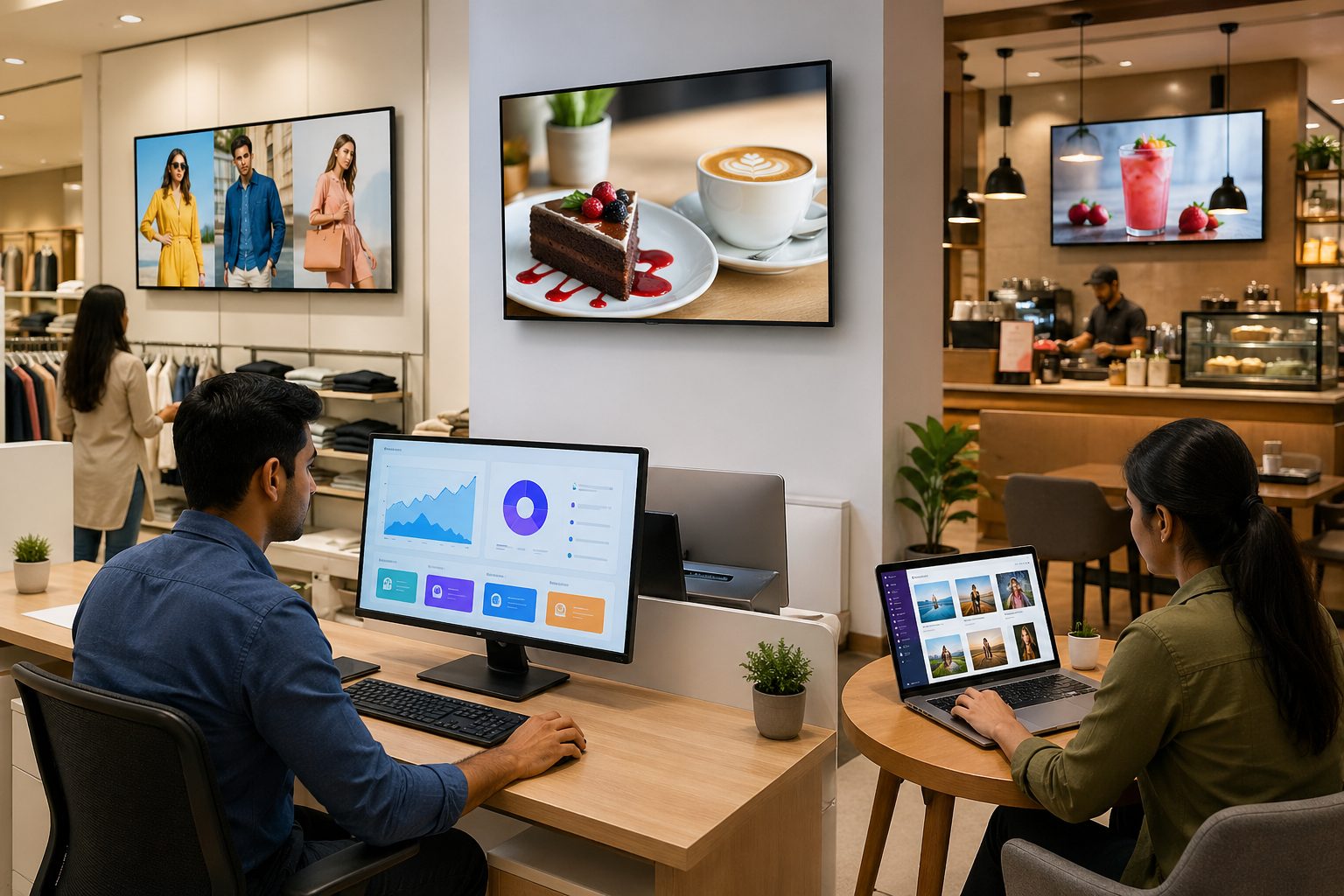
The Signmitra Player is the software layer that receives assigned content from the cloud CMS and presents it on the connected display. It links the screen to your account, downloads approved media and follows the playlists and schedules published to that screen.
Use a built-in smart-display player where supported, or connect an external Android, Fire TV, Windows or macOS device when that approach better matches the installation.
HOW SIGNMITRA PLAYER WORKS
The same operating sequence connects one reception TV or a distributed multi-location screen network.
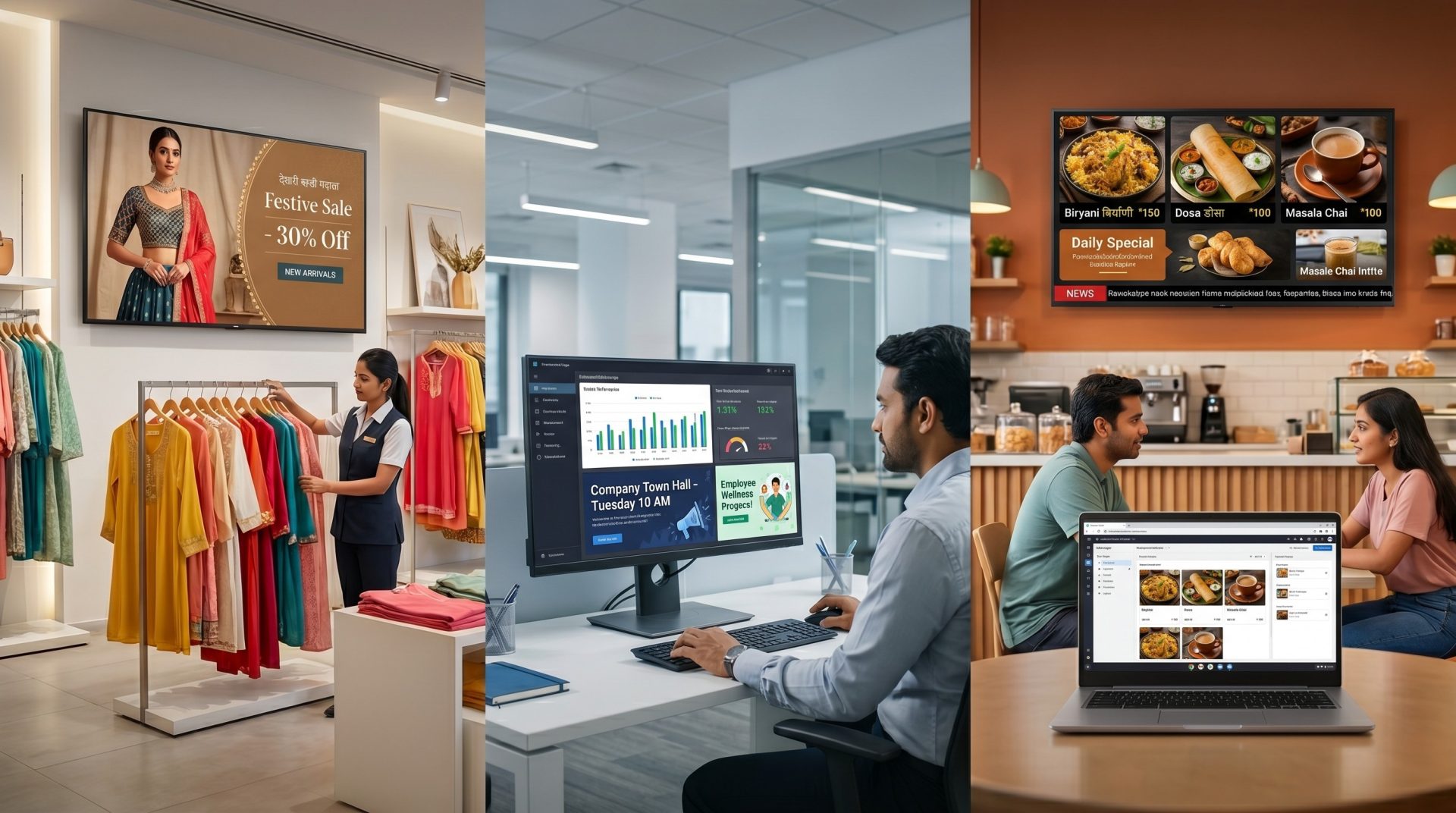
ONE PLAYER, DIFFERENT SCREEN MODES
Use the player as a scheduled signage endpoint or enable supported interaction and desktop display modes when the project requires them.
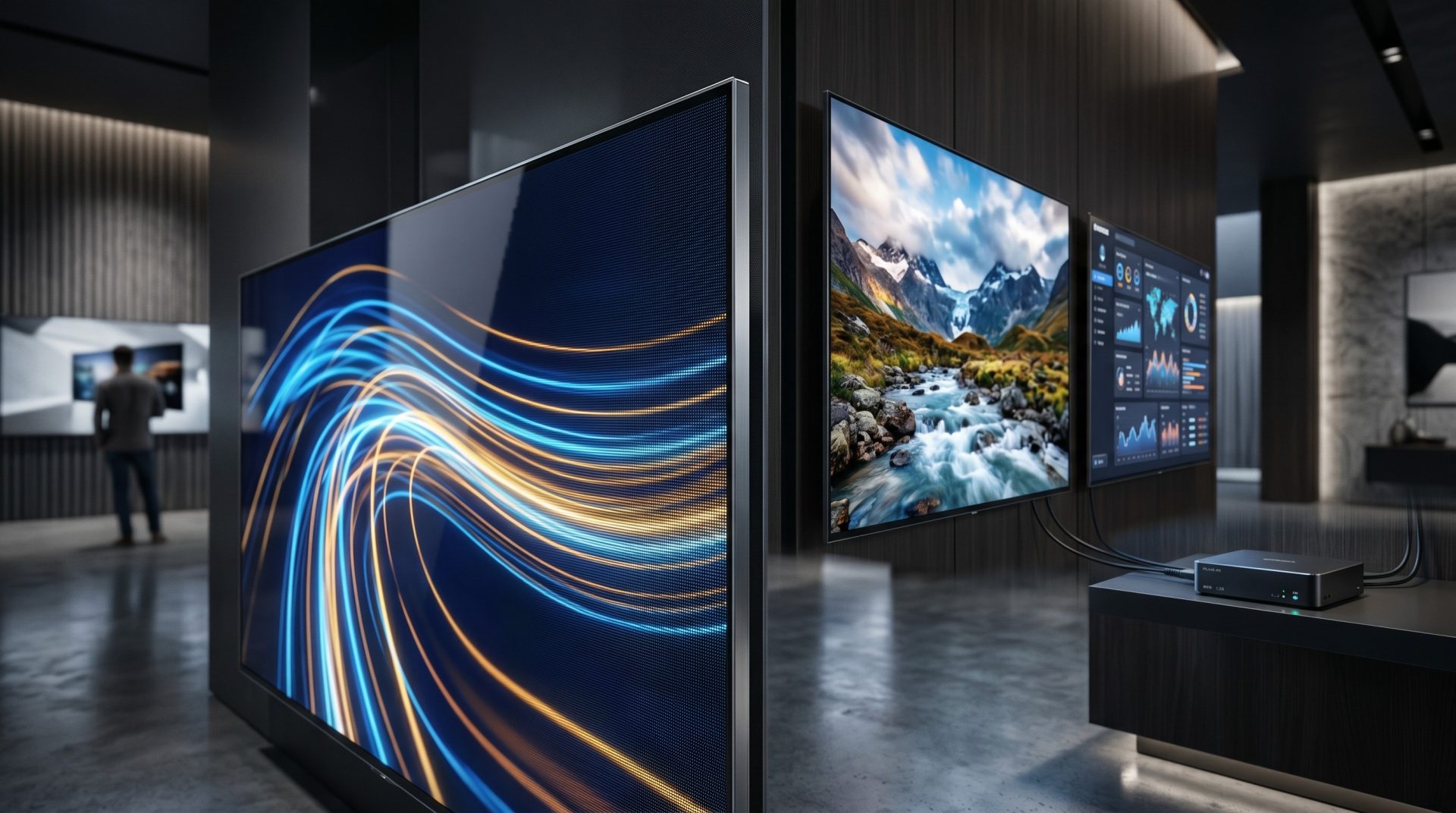
Run assigned playlists, layouts, schedules and approved apps as the normal full-screen digital signage experience.
CORE PLAYER CAPABILITIES
Keep the software-to-screen workflow consistent while choosing hardware appropriate to each location.
Pair the displayed registration code with the correct Signmitra account and screen record.
Receive assigned media, layouts, playlists, schedules and supported app configuration from the cloud.
Continue previously synced local media during a temporary network interruption.
Publish content and configuration changes without copying files to every screen manually.
Match the published layout and device configuration to the intended display orientation.
Prepare media for the codec, resolution, storage and processing capability of the chosen player.
Review reported screen state and investigate devices that may need remote or on-site attention.
Use approved installers, managed links and platform-specific setup guidance for production screens.
SIGNMITRA PLAYER DOWNLOADS
Use the managed package links below for the current Signmitra player builds. Confirm device model and OS compatibility before a large rollout.

Signmitra Player for Android
Install from Google Play on supported Android TV, Android media-player and compatible Android display environments.

Signmitra Player for Windows
Install the managed Windows player on a compatible Windows PC or mini PC connected to the display.

Signmitra Player for macOS — Intel
Use the Intel build on a compatible Intel-based Mac connected to the signage display.
Signmitra Player for macOS — Apple Silicon
Use the Apple Silicon build on a compatible M-series Mac connected to the display.

Signmitra Player for Amazon Fire TV
Install Signmitra from the Amazon Appstore on a supported Fire TV device and complete the required setup for unattended signage use.

Signmitra Player for Samsung Tizen
Use the signed Tizen player package on supported Samsung commercial signage models after validating the model and Tizen version.
https://www.signmitra.com/tv/
App Management → Install Custom App. The WGT download button is for computers, not this TV field.

Signmitra Player for LG webOS
Use the managed webOS player package on supported LG commercial signage displays after confirming model and webOS compatibility.

ChromeOS and other deployment paths
Platform references do not guarantee a direct player package for every device. Share the exact model, OS version and use case for compatibility review.
No matching player download found. Try another operating system or device name.
PLAYER DEPLOYMENT OPTIONS
The best player is the one that meets the content, support and physical requirements of the installation.
Supported commercial smart displays
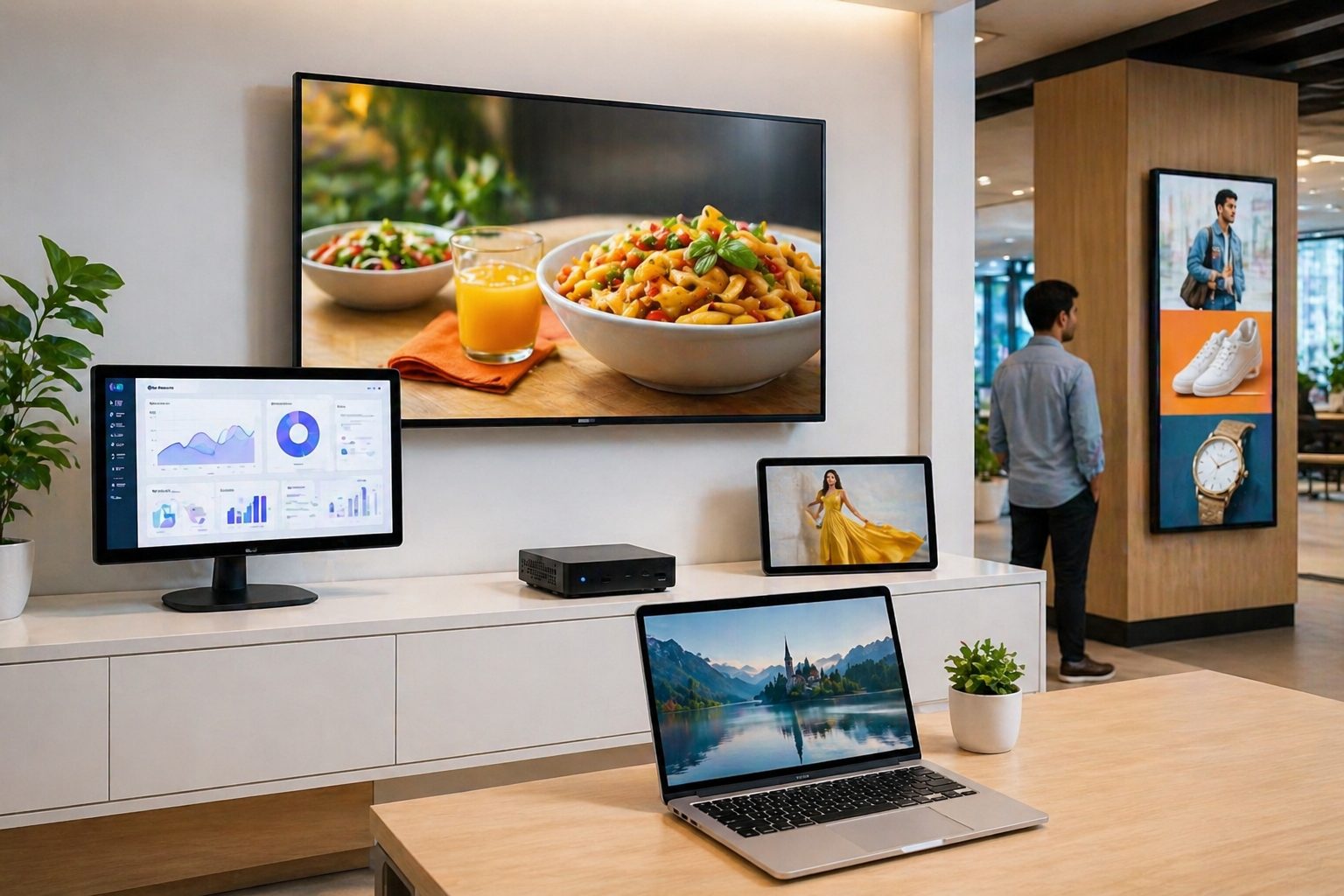
Reduce external hardware where a compatible Samsung Tizen or LG webOS signage display supports the approved player package.
Android TV and media players
Use the Play Store player on a validated Android TV, Android box or compatible commercial display environment.
Compact Amazon Fire TV deployments
Install through the Amazon Appstore and follow platform-specific setup guidance for permissions and unattended operation.
PC, mini-PC and screensaver workflows
Use the managed Windows player where desktop hardware, touch kiosk or optional Screensaver Mode fits the project.
Intel and Apple Silicon players
Select the correct managed macOS package for the Mac architecture and validate display and input behavior on-site.
Specialist and emerging devices
Confirm the exact model, OS, browser engine, orientation, codec and peripheral requirements before promising support.
COMPARE PLAYER APPROACHES
All three approaches can work well. Choose according to display support, content complexity, maintenance access and required peripherals.
| Deployment consideration | Smart Display Player | Android / Fire TV Device | Windows / macOS Player |
|---|---|---|---|
| External player hardware | Not usually | Required | Required |
| Installation method | Model-specific package | App store | Managed installer |
| Move between displays | Display-bound | Portable device | Portable computer |
| Touch and peripherals | Model-dependent | Compatibility review | Broader OS options |
| Windows Screensaver Mode | Not applicable | Not applicable | Windows option |
| Physical maintenance | Display service | Replace player separately | Computer support |
| Best-fit decision | Clean commercial install | Flexible standard signage | Desktop or advanced input |
Smart Display Player
Not usuallyAndroid / Fire TV Device
RequiredWindows / macOS Player
RequiredSmart Display Player
Model-specific packageAndroid / Fire TV Device
App storeWindows / macOS Player
Managed installerSmart Display Player
Display-boundAndroid / Fire TV Device
Portable deviceWindows / macOS Player
Portable computerSmart Display Player
Model-dependentAndroid / Fire TV Device
Compatibility reviewWindows / macOS Player
Broader OS optionsSmart Display Player
Not applicableAndroid / Fire TV Device
Not applicableWindows / macOS Player
Windows optionSmart Display Player
Display serviceAndroid / Fire TV Device
Replace player separatelyWindows / macOS Player
Computer supportSmart Display Player
Clean commercial installAndroid / Fire TV Device
Flexible standard signageWindows / macOS Player
Desktop or advanced inputPlayer compatibility depends on the exact device model, operating-system version, display orientation, codec, resolution, storage, browser engine, touch input and any connected peripherals. Review Your Player Hardware
SOFTWARE AND HARDWARE RESPONSIBILITY
Cloud management improves visibility, but dependable playback still needs a validated device and an on-site support plan.
SIGNMITRA PLAYER
The Signmitra workflow connects the registered screen with its approved content and schedule.
DEPLOYMENT TEAM
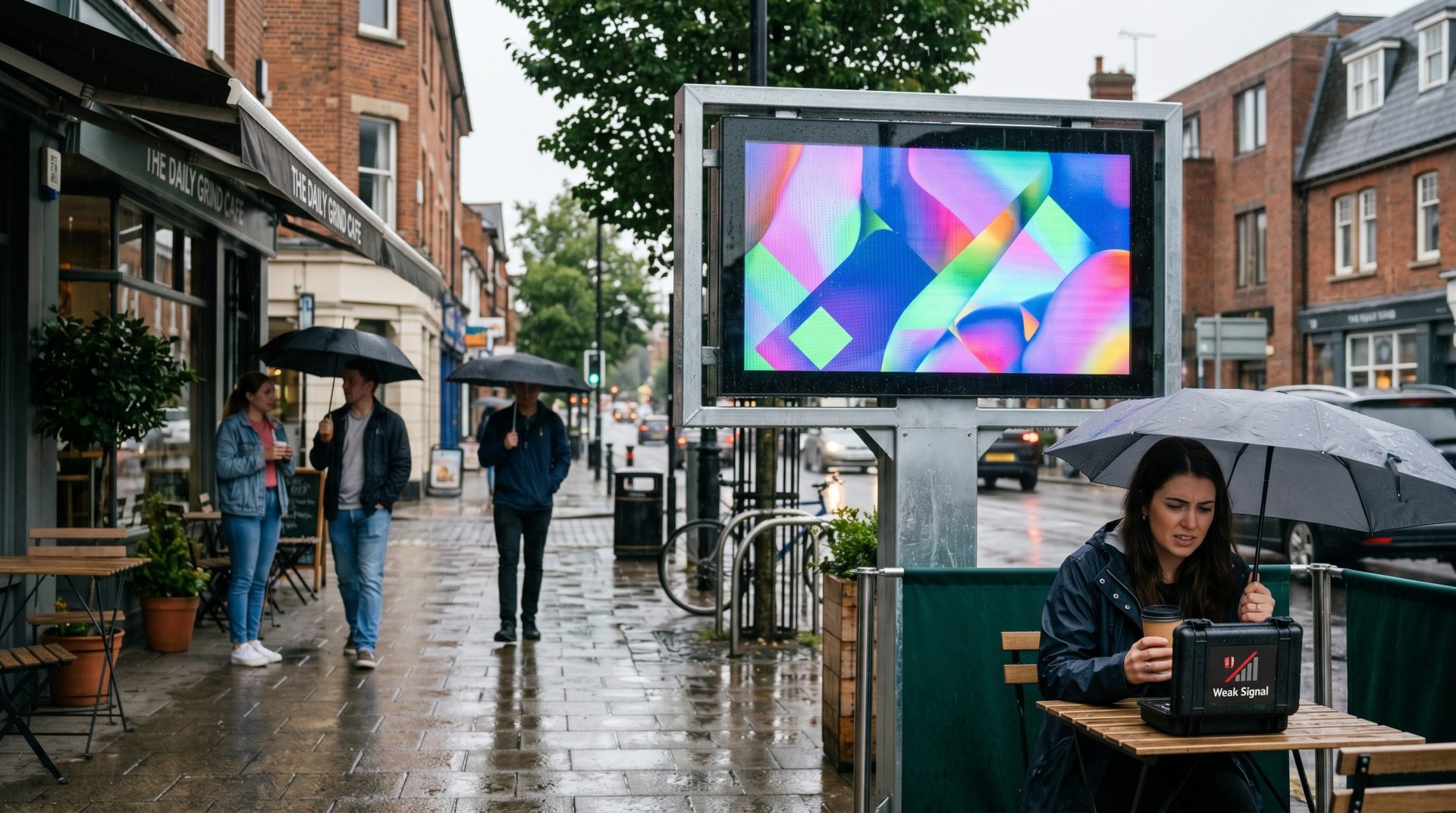
Your implementation plan should cover the physical conditions that software alone cannot resolve.
A CONTROLLED PLAYER ROLLOUT
Validate the complete playback path with representative content, then standardize it for the remaining locations.
THE PLAYER OPERATING CYCLE
A production player needs predictable behavior before, during and after normal playback.
Prepare the device to launch the approved player workflow after normal power or application restarts.
Receive current screen assignments and retain supported media needed for scheduled local playback.
Present the approved content sequence according to the screen's layout, timing and operating purpose.
Change content or screen assignments remotely without moving media by USB between locations.
Review reported screen status and escalate physical, network or device faults through the appropriate support path.
SIGNMITRA PLAYER FAMILIES
Choose the family, then confirm the exact device, operating system and installation method before deployment.
Use the Google Play player on supported Android TV, media-player and compatible Android display environments.
Install through the Amazon Appstore and follow the appropriate setup steps for permissions and unattended playback.
Use the managed Windows player on compatible PCs and the optional Screensaver package where idle-screen communication is required.
Select the package that matches the Mac architecture, then validate display, audio and input behavior on the installed system.
Use the signed Tizen package on supported Samsung commercial signage displays after checking the model and Tizen version.
Use the managed webOS package on supported LG commercial signage displays after confirming the model and OS compatibility.
DIGITAL SIGNAGE PLAYER FAQ
Use these answers to choose a supported path and plan reliable day-to-day playback.
Share the TV or device model, operating system, orientation, content type and required peripherals for a compatibility review.
Choose a supported app or managed installer, pair the screen and publish your first approved content from the cloud dashboard.